
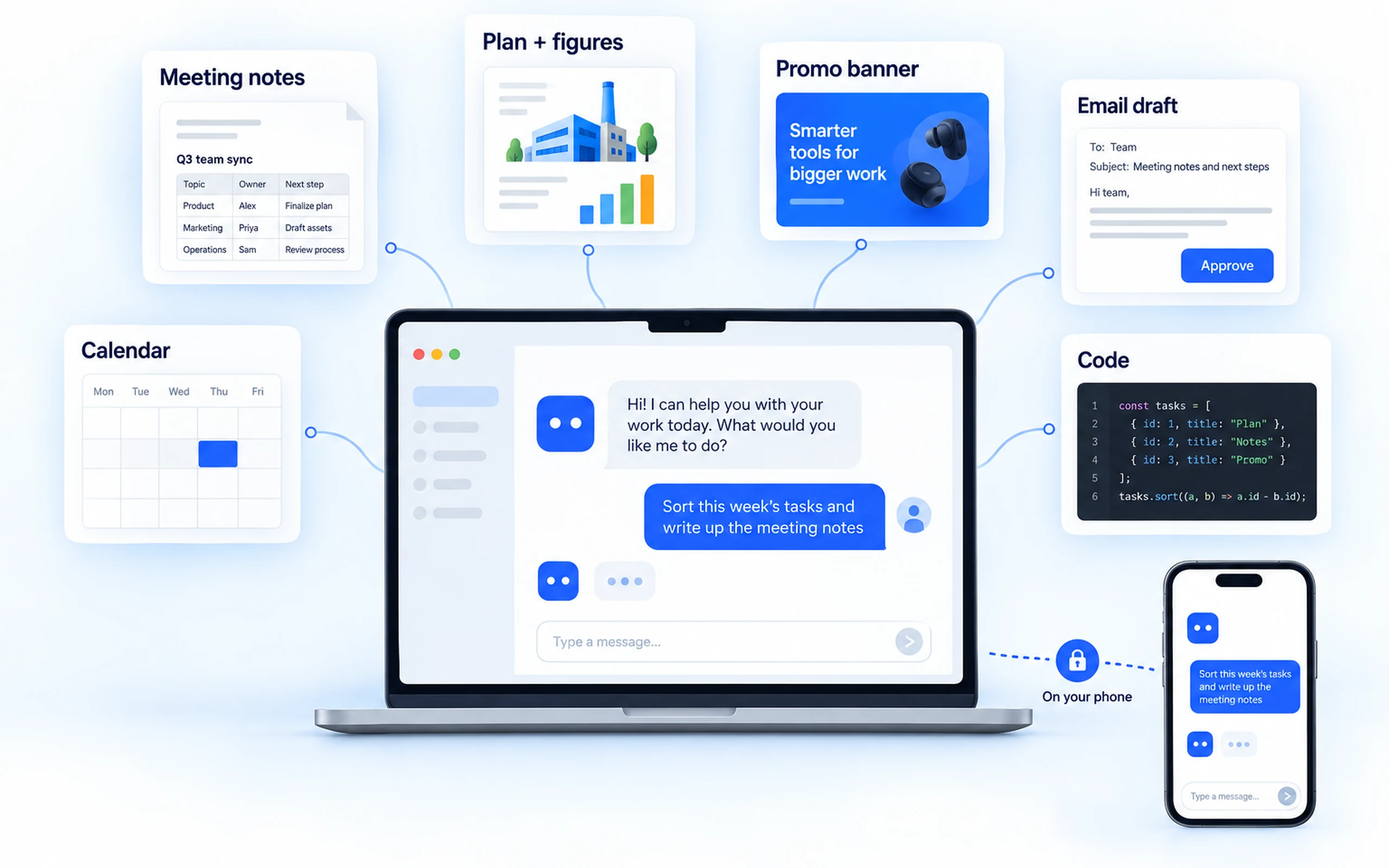
“Write our grant application in the funder's template using our company materials, and make the pitch deck too.”
Writes the application in the funder's template and the PowerPoint deck in its own layout, in one go.
AI assistant · Office documents · Work messages
From drafting documents to answering work messages, one request gets it done. The AI does the writing. Nothing leaves until you approve it.
The all-in-one installer includes every manager, so it is larger. When the dedicated HanFlow Bot installer is ready, this button switches automatically.
If the Mac app doesn't update itself, download and install this version once — updates are automatic after that.
Requirement: your own Claude or GPT subscription account (billed separately). See requirements →
Install HanFlow Bot on your PC first. The phone app (Google Play and App Store) connects to the bot running on that PC.
Requires a Windows or Mac PC.
📱 HanFlow Bot phone app
The phone app connects to HanFlow Bot running on your PC. Install HanFlow Bot on your PC as well.
Requirements
Connect one account: a Claude subscription (Claude Code) or a GPT subscription (Codex). API keys are not supported, and the HanFlow price does not include the Claude or GPT subscription. AI image generation needs a separate image API key.
Documents and files the bot creates are saved on your PC. While HanFlow Bot is running there, you can also receive them in the phone app. When you use AI features, the task content is sent to the AI provider you connected (images go to the image provider you connected).
HanFlow AI Assistant — Base (Monthly)'HanFlow Bot runs on the Base subscription, so the payment page shows the English product name HanFlow AI Assistant — Base (Monthly). If you are eligible for the trial, “· First month free” is added after it.
Messaging-app and SMS replies and website tasks run on the Windows version.
Use cases
Word · PowerPoint · Excel · Images
Writes the application in the funder's template and the PowerPoint deck in its own layout, in one go.
Organises the Excel data and drafts replies to customer enquiries in your style. Nothing is sent until you approve.
Generates the AI image and drafts the blog post. You publish it yourself after reviewing.
Document writing
Word, PowerPoint, Excel and images — the bot keeps the layout of the document you already use.
Writes into the fields of your template and keeps its formatting, tables and alignment.
Builds slide decks and summary sheets that follow the layout of your existing files.
Reads the call for proposals and your existing template, then drafts the application.
Filling in Excel templates requires Microsoft Excel on your PC.
Website tasks
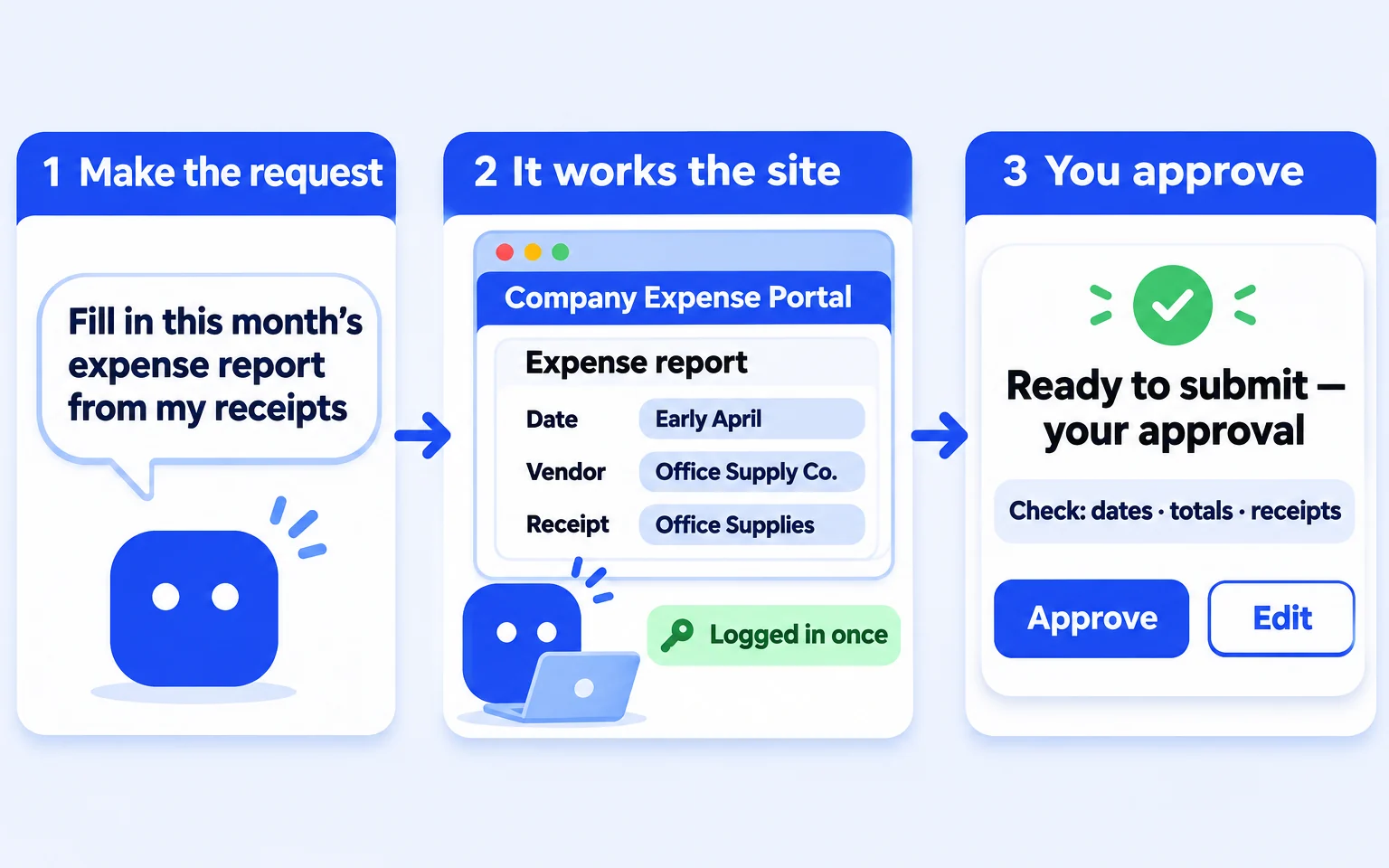
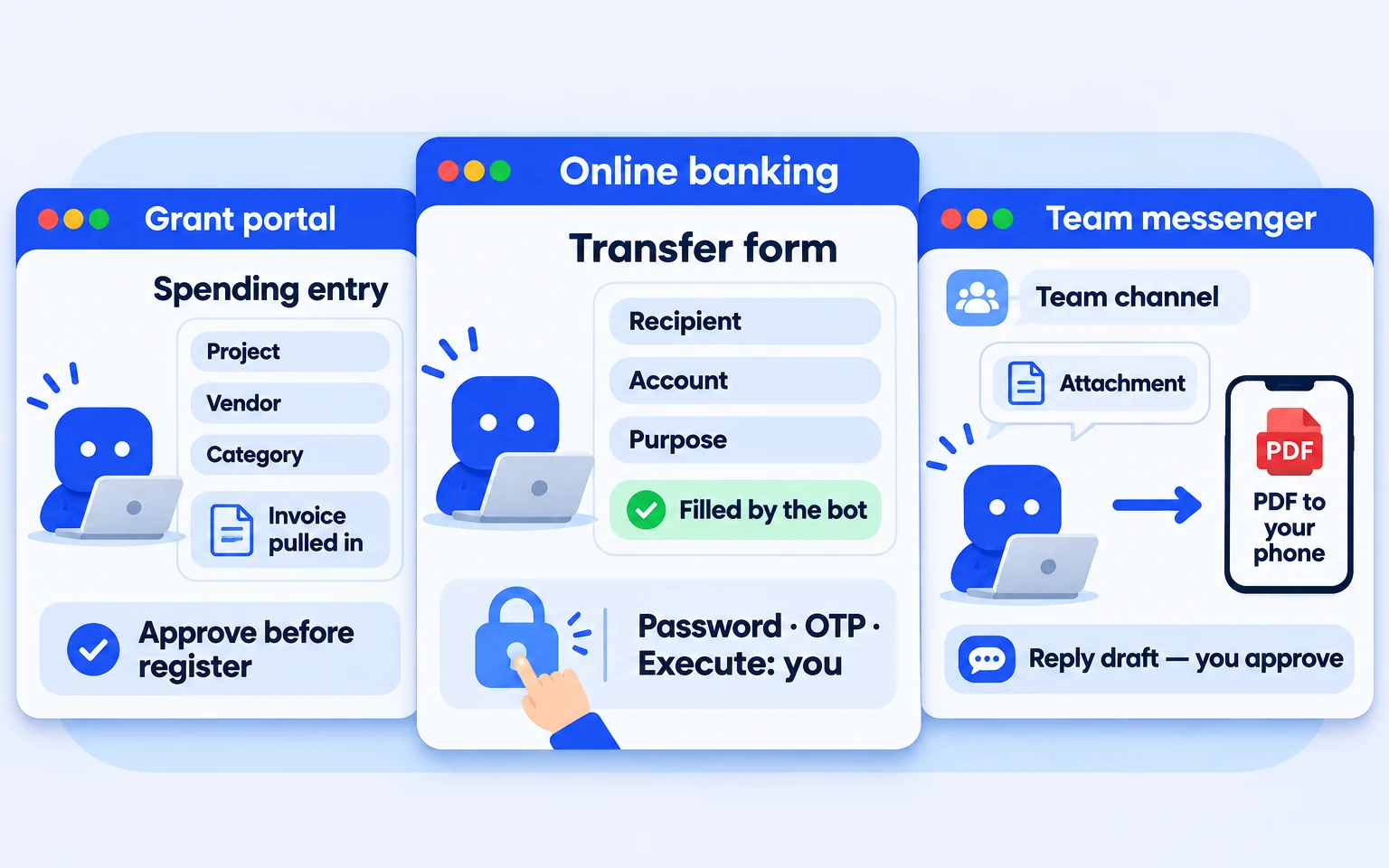
With one request the bot opens the site, looks things up and fills in forms. It stops for your approval right before anything is submitted or paid.
Work message replies
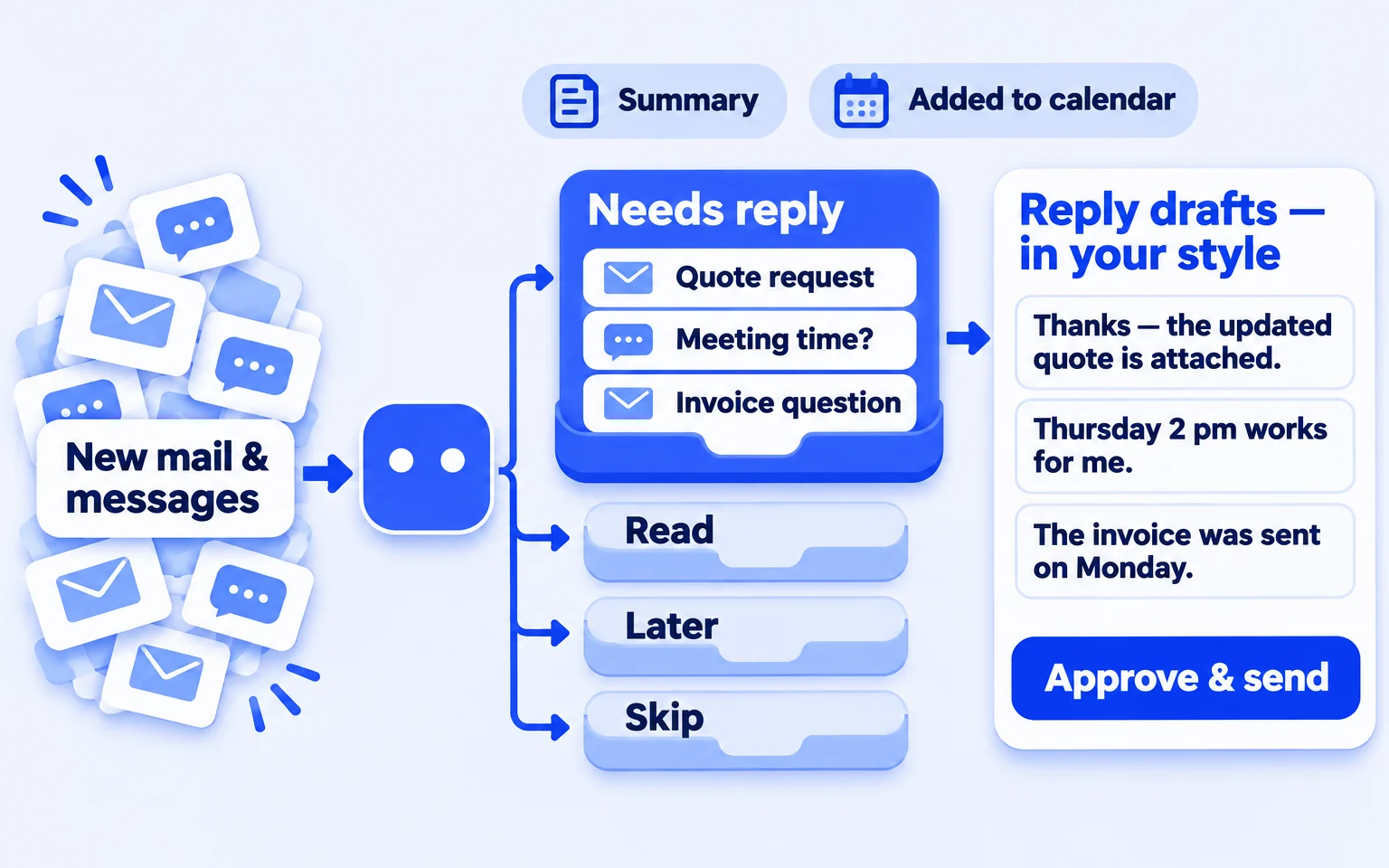
The bot checks your email and team chat and drafts replies to the messages that need one. It matches your style using the messages you have sent to that contact, and nothing is sent without your approval.
Approval: every reply is confirmed before sending
Tasks the bot we use every day has actually completed, shown by type of site only. No site names, personal names or amounts.
Approval: you check the draft before it is sent — the result is confirmed in the sent folder
Approval: before replies and announcements are sent
Approval: it stops right before payment — only bookings you requested go ahead
Approval: right before submitting — if a claim is rejected, it reads the reason and reports
You execute — then the bot confirms the debit in the transaction history
Approval: right before register or e-signature — evidence files are attached by you
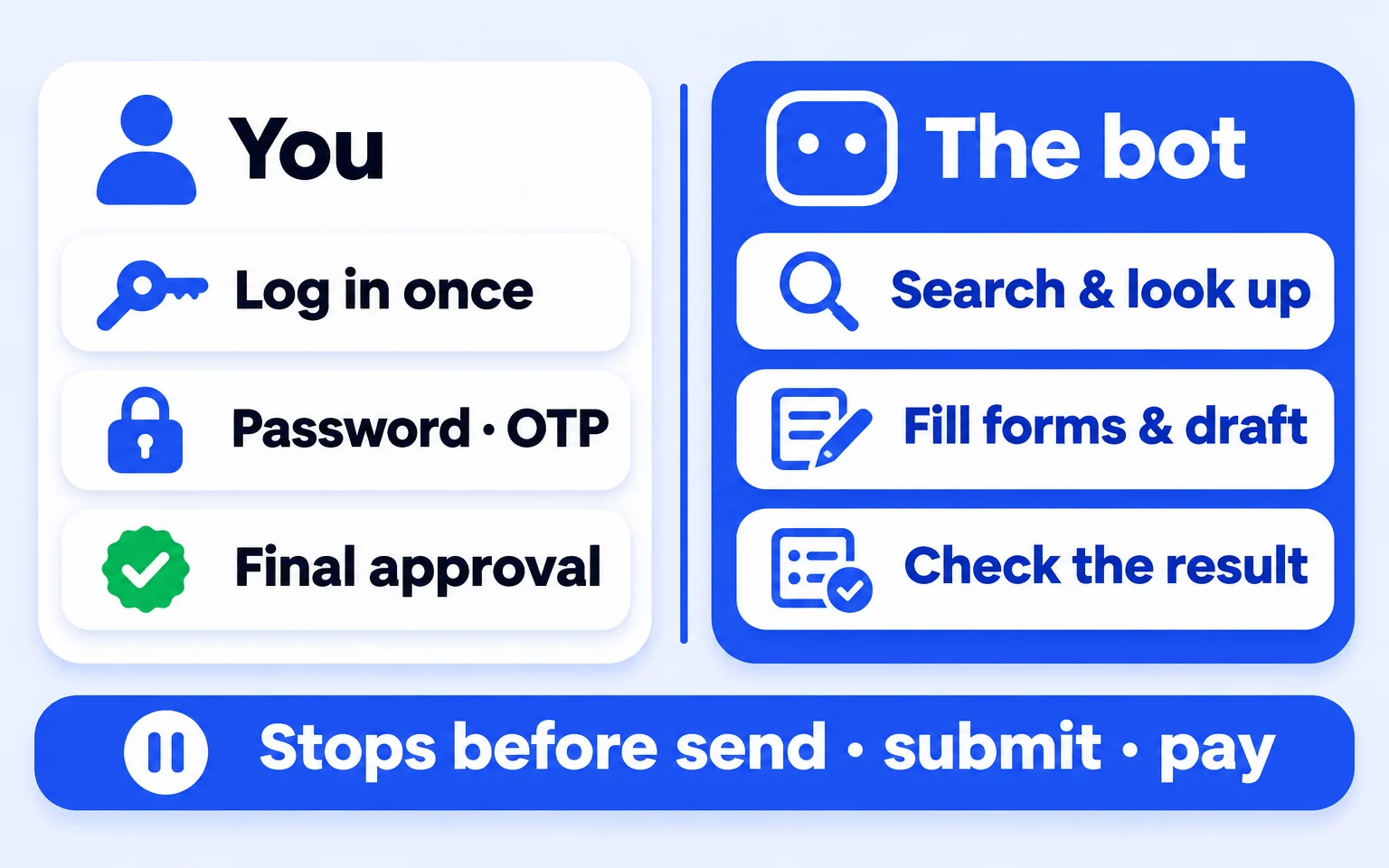
The bot stops before anything is sent, submitted or paid and waits for you. Files and messages never leave without your approval.
The received message and the reply draft appear together. It is sent only after you approve.
Forms and applications stop right before the final submit and wait for approval.
The bot never completes a payment itself. It stops right before payment and shows you the details.
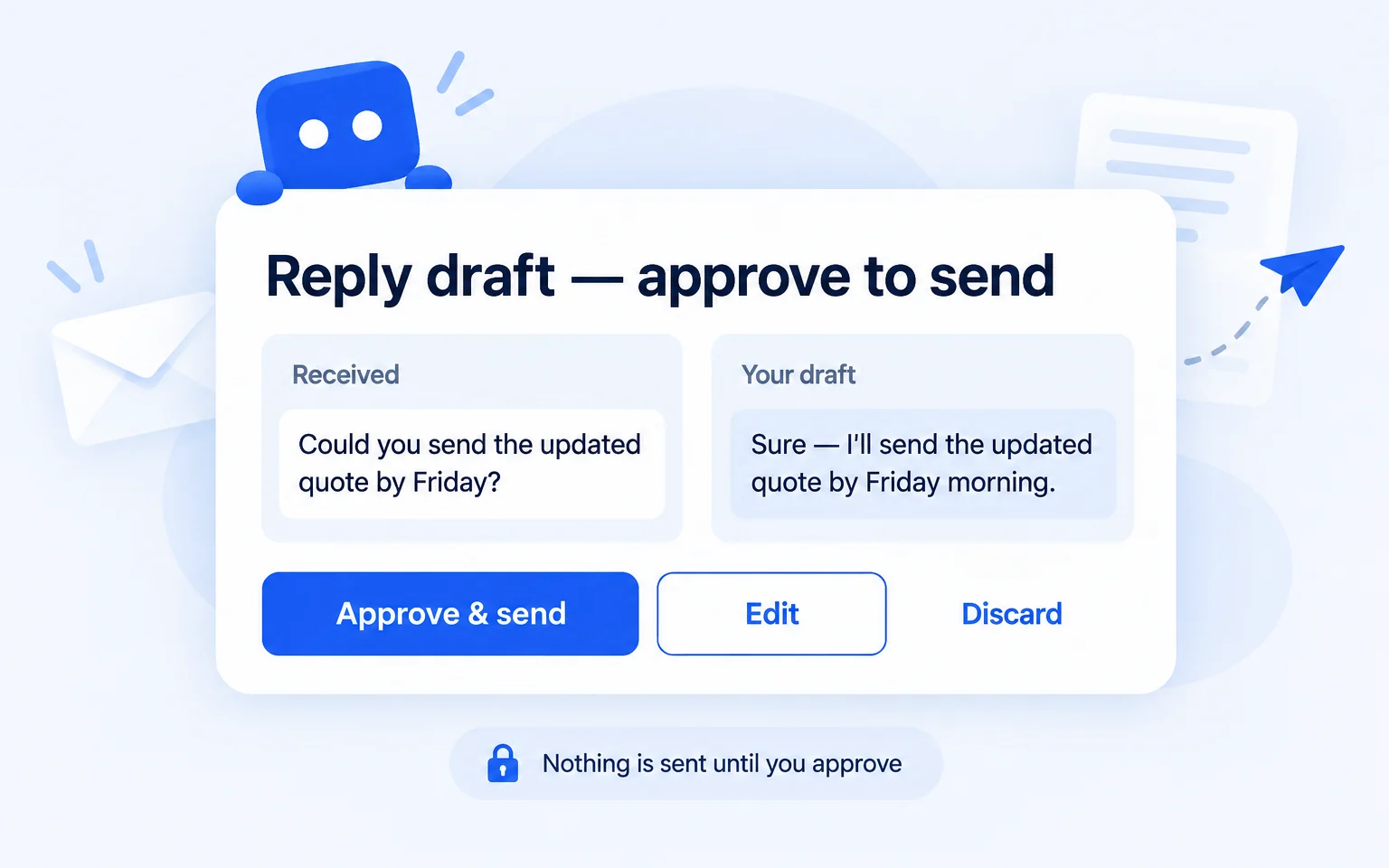
Sent after approval
“Set up the investor meeting next Tuesday at 3, make the slides and draft an invitation email to the attendees.”
Email and messages go out only after you have checked the draft.
Payments, transfers, passwords and OTPs are entered by you.
Your files are saved on your PC.
Bots for each job
A Work bot and a Personal bot come built in, and you can add more. Each bot keeps its own memory, conversation history and engine settings.
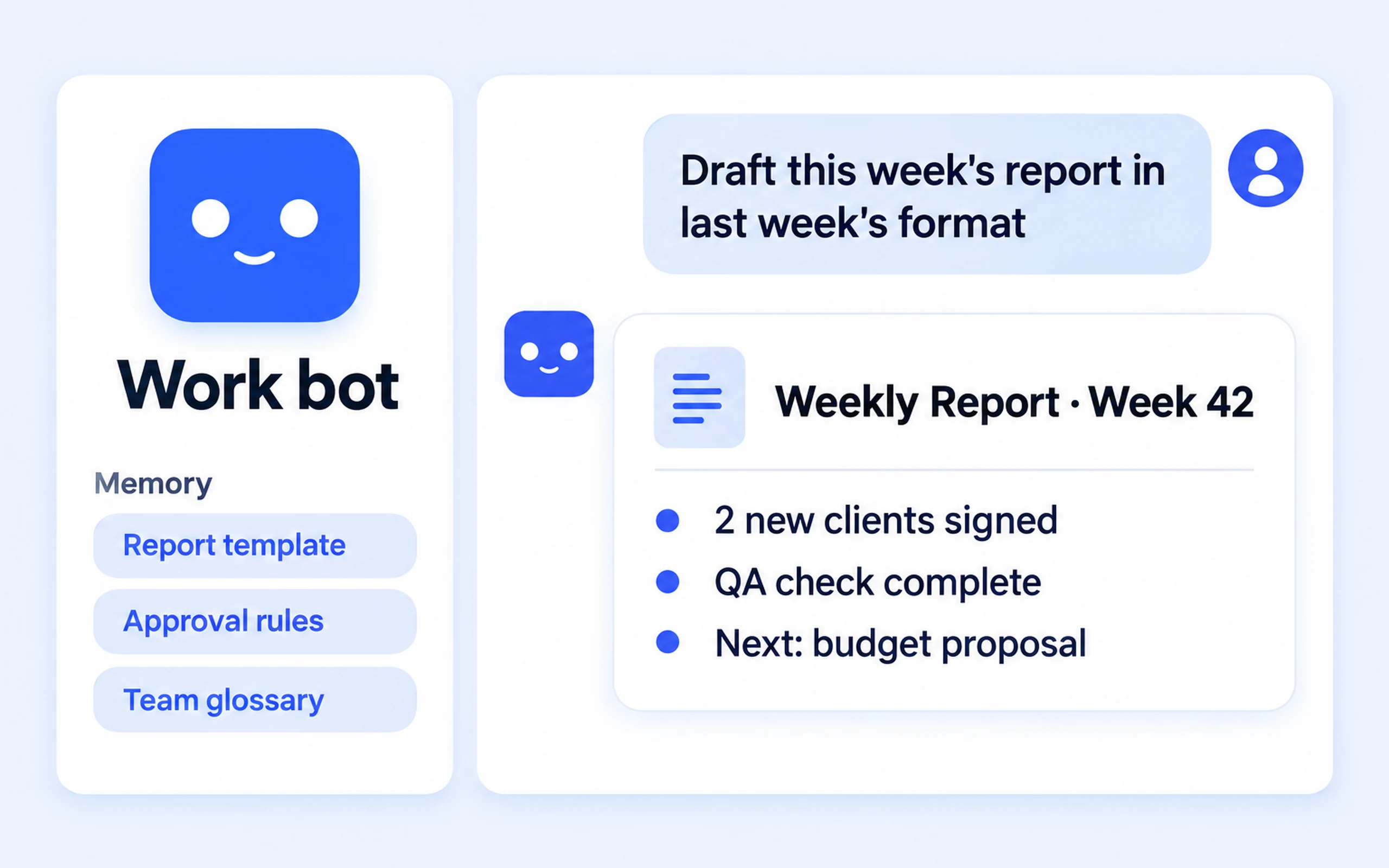
Writes weekly reports, official memos, and meeting minutes in your team's format.
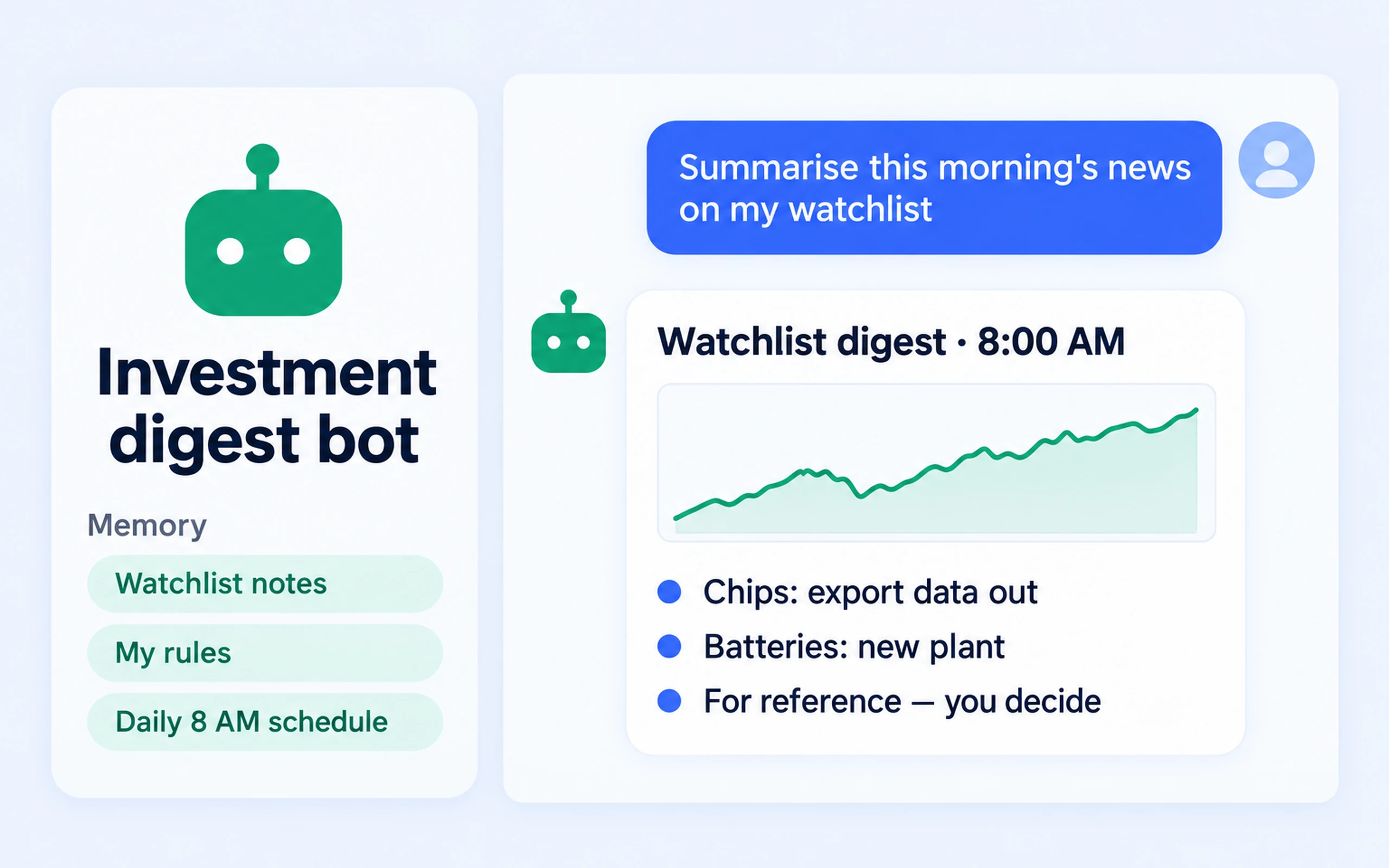
Compiles news on your watchlist stocks every morning. Investment decisions are yours.
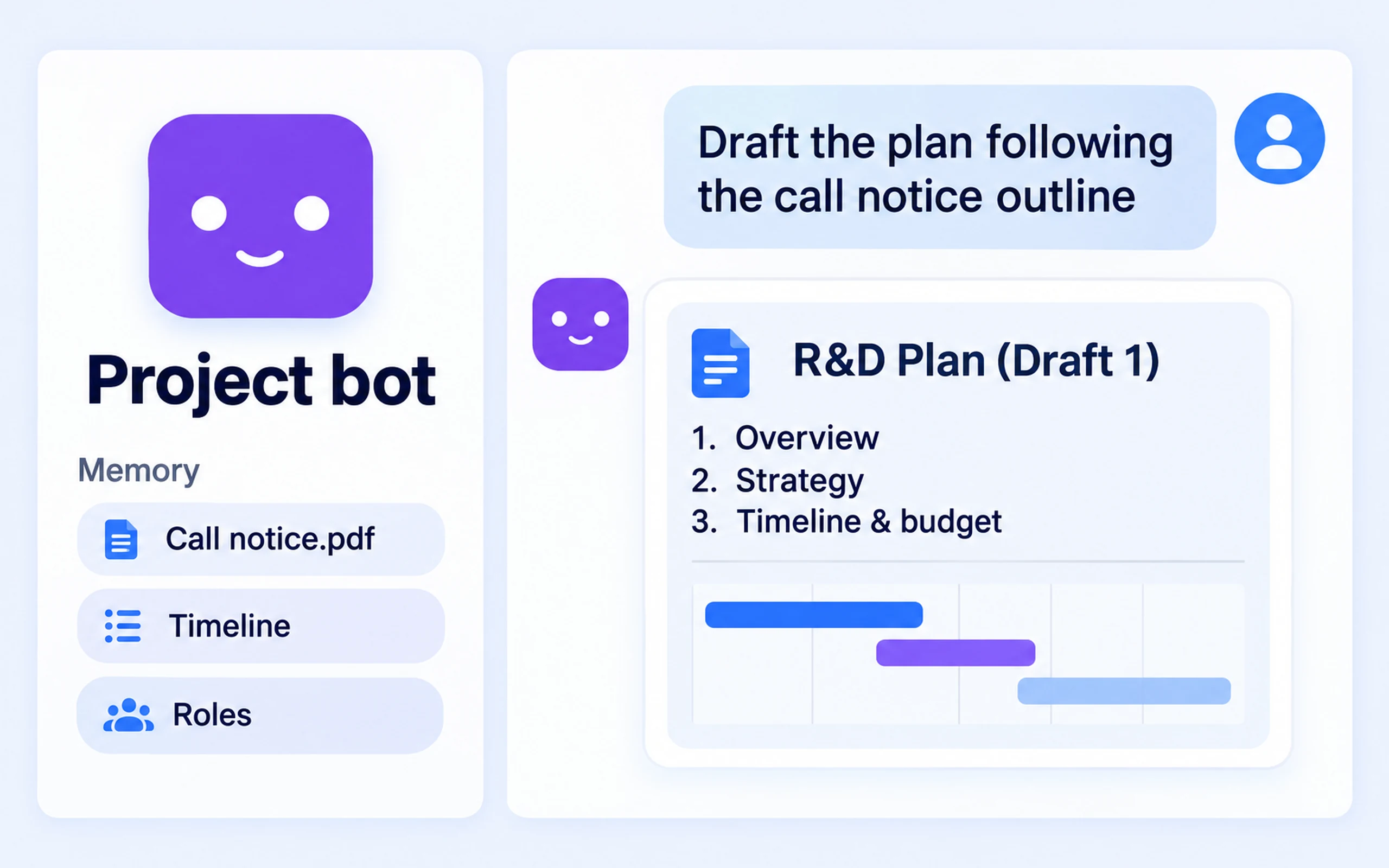
Remembers RFPs, timelines, and role assignments, then drafts proposals and progress reports.
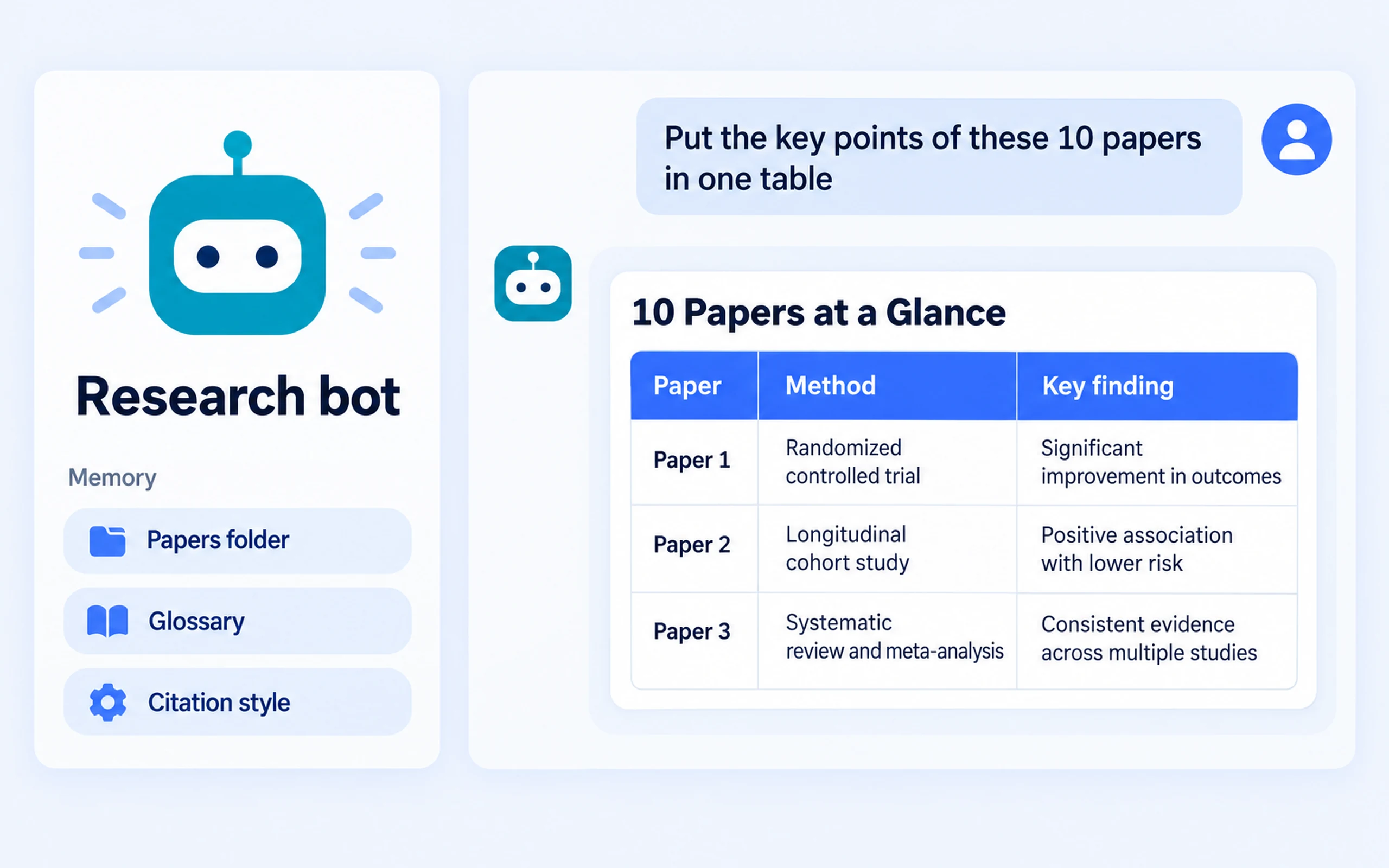
Reads papers from the folders you allow and distills key findings into a single-page table.
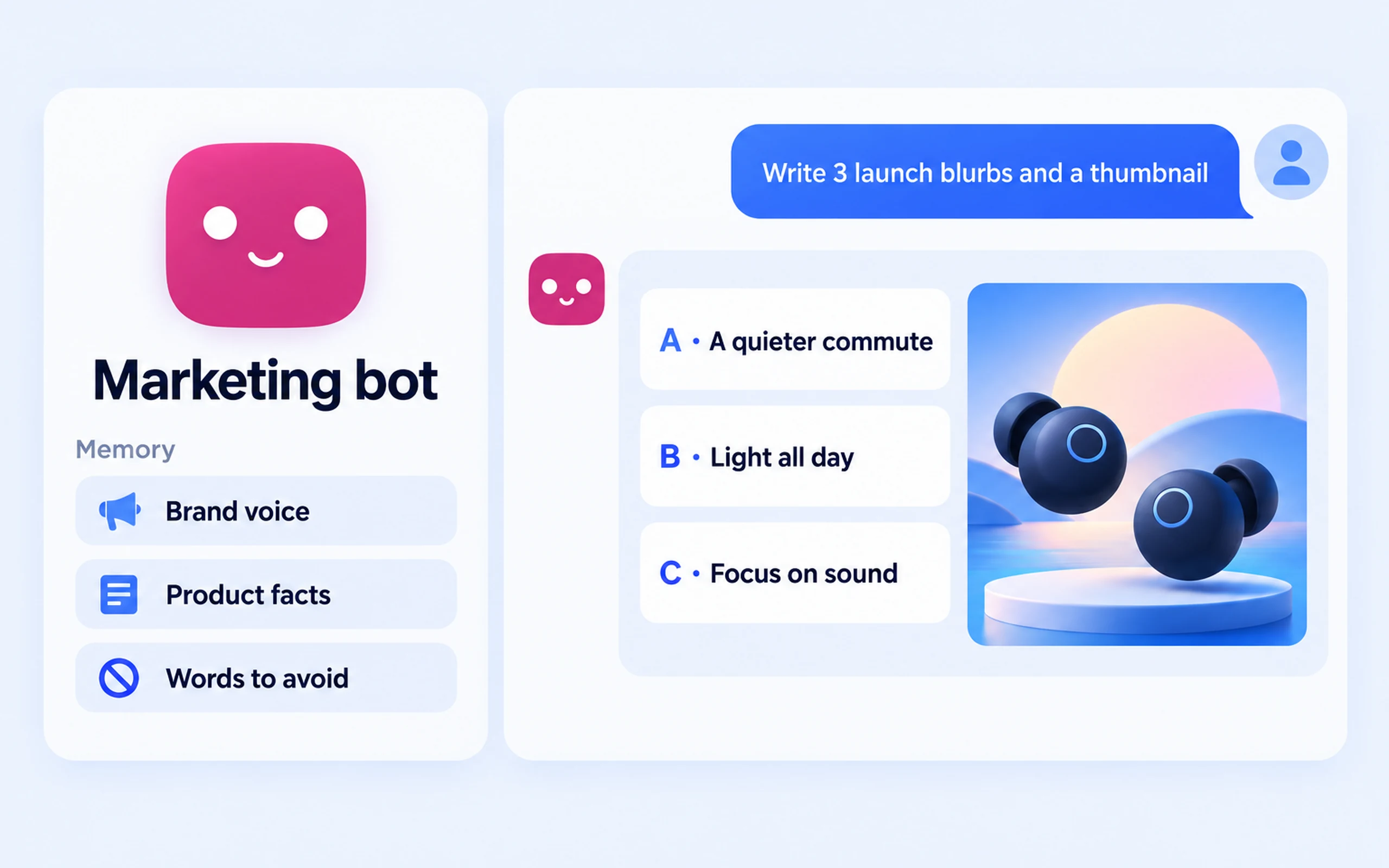
Creates on-brand copy and thumbnail images.
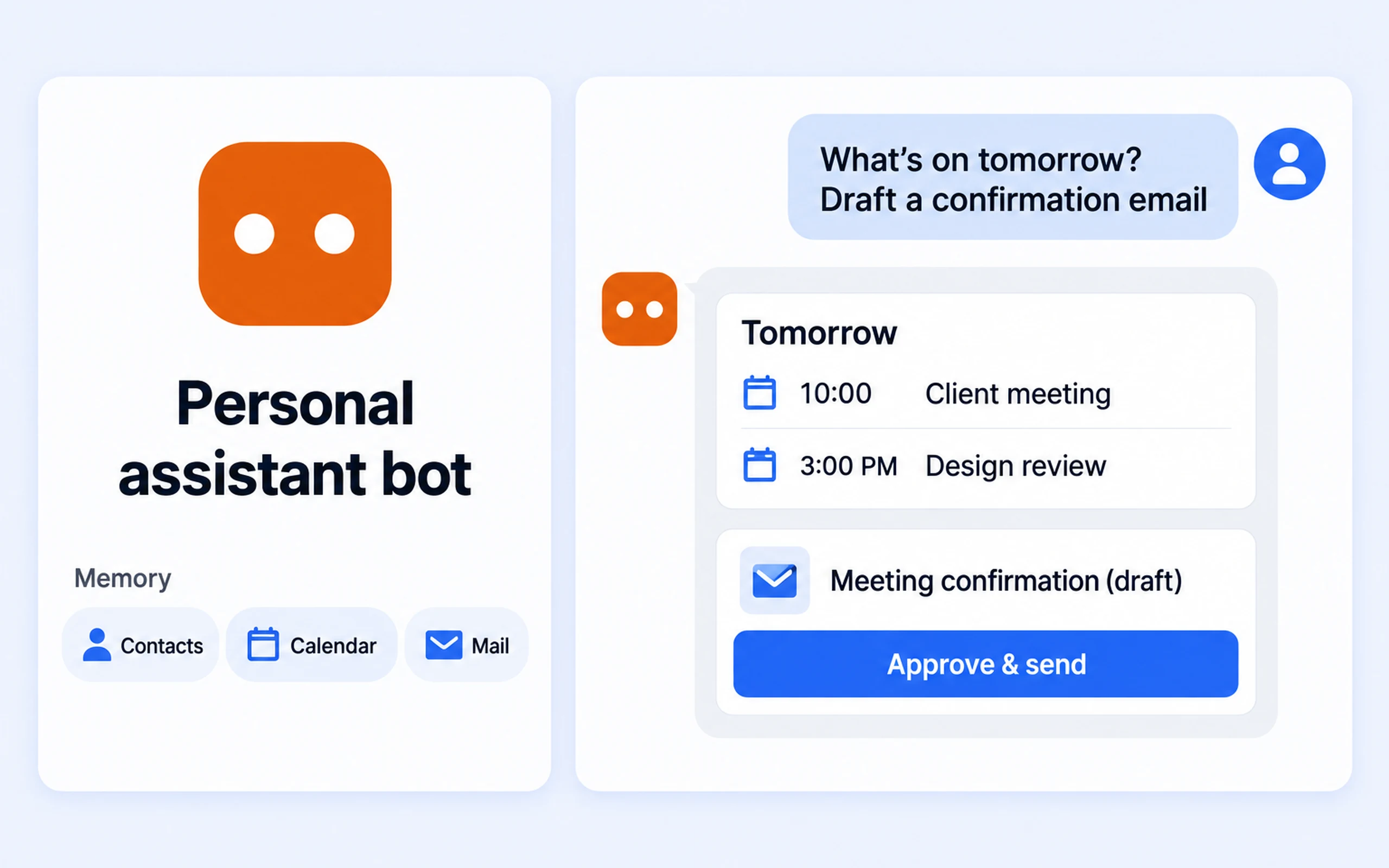
Reminds you of upcoming events, drafts confirmation emails, and adds new calendar entries.
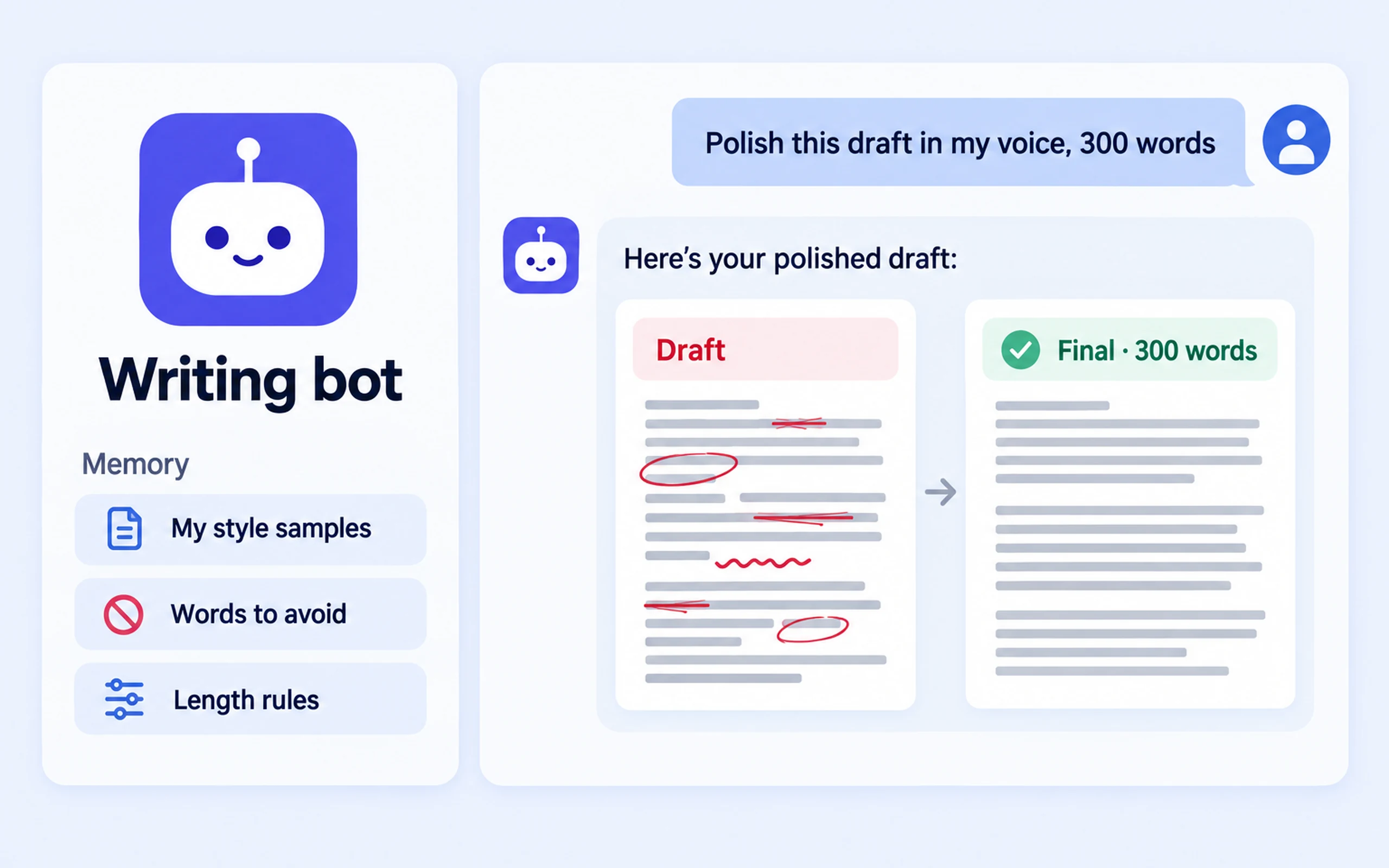
Remembers your writing style and refines drafts to the length you want.
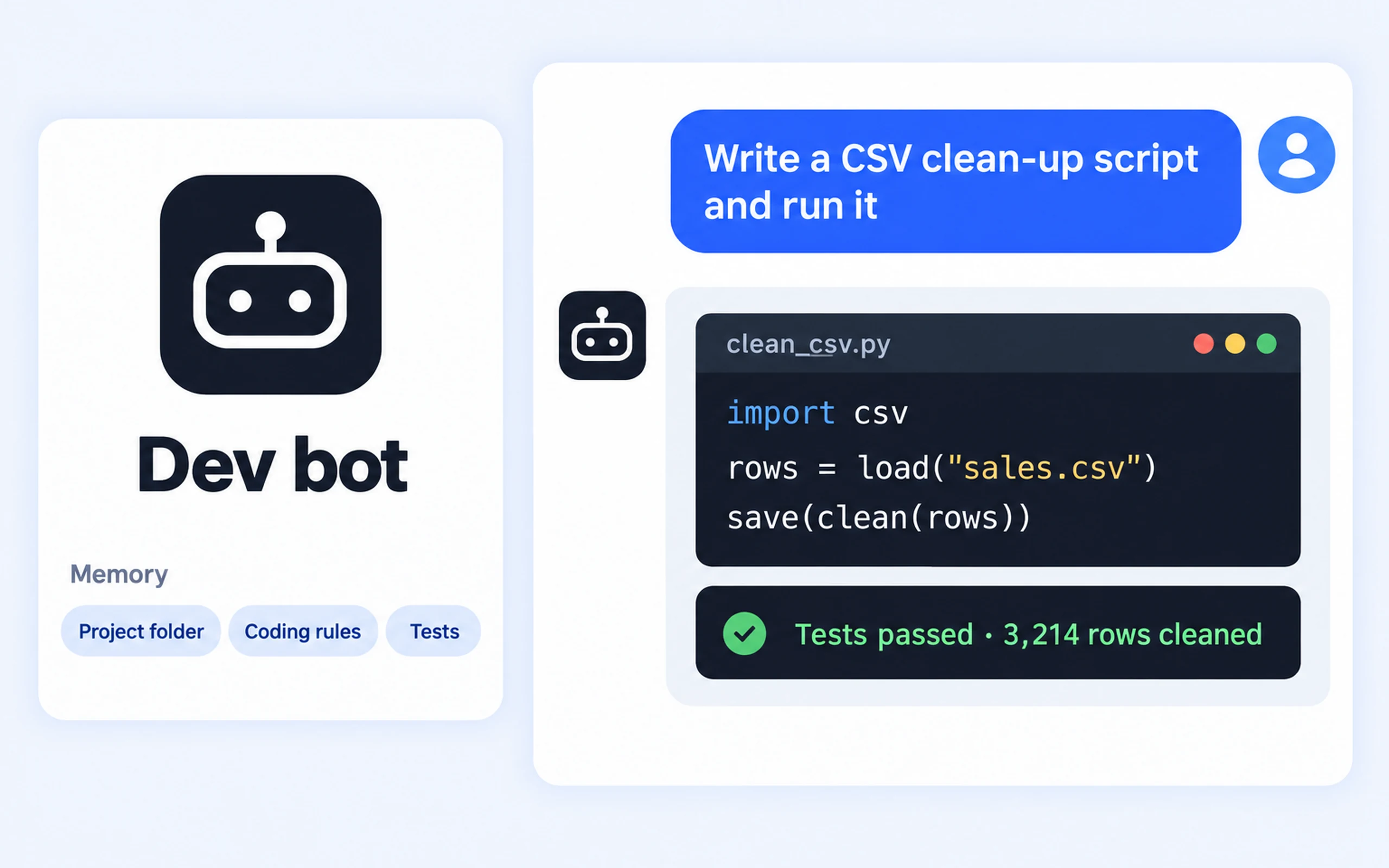
Remembers your project folder and coding conventions, then writes and runs code.
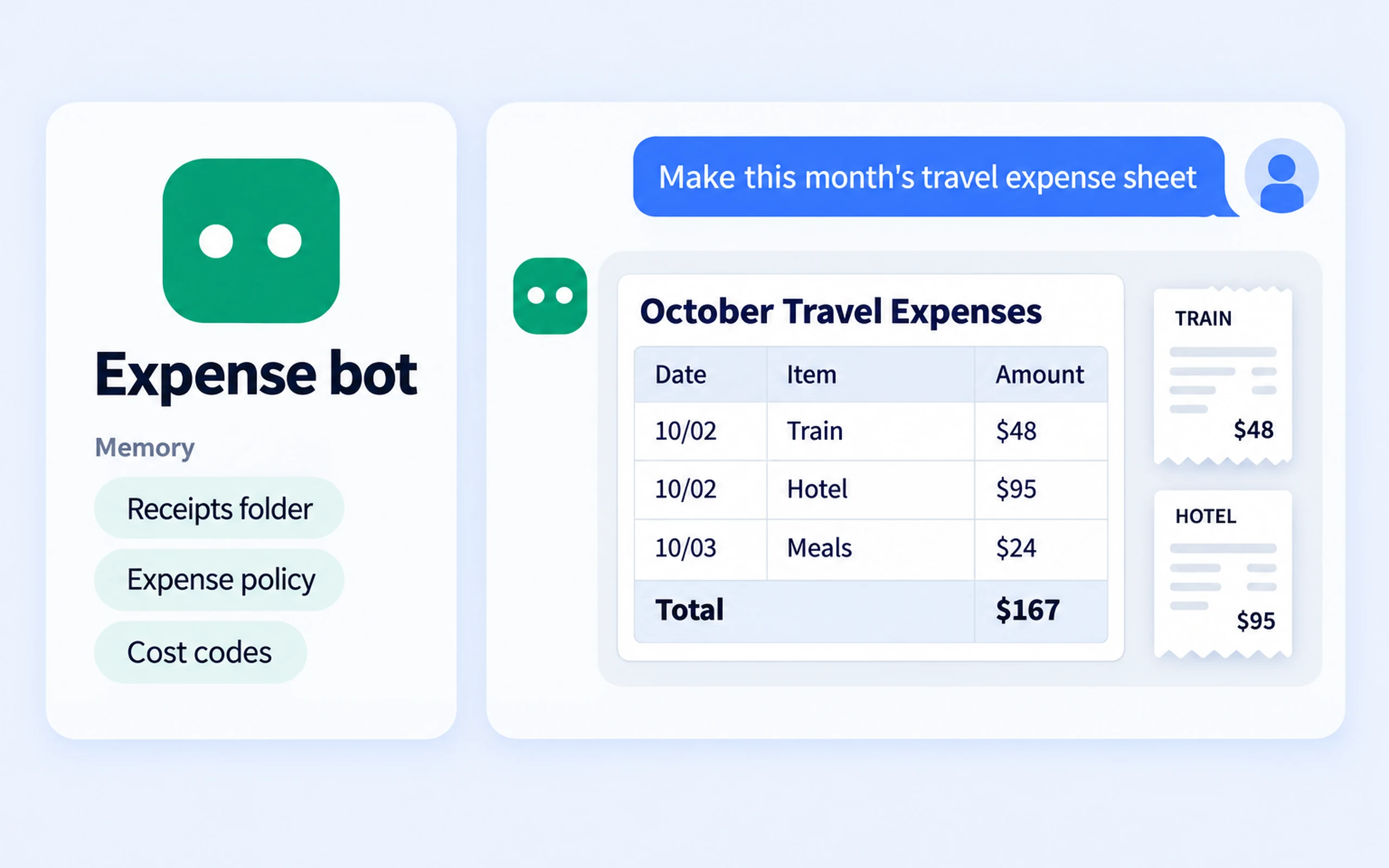
Remembers your receipt folder and reimbursement rules, then produces organized expense sheets.
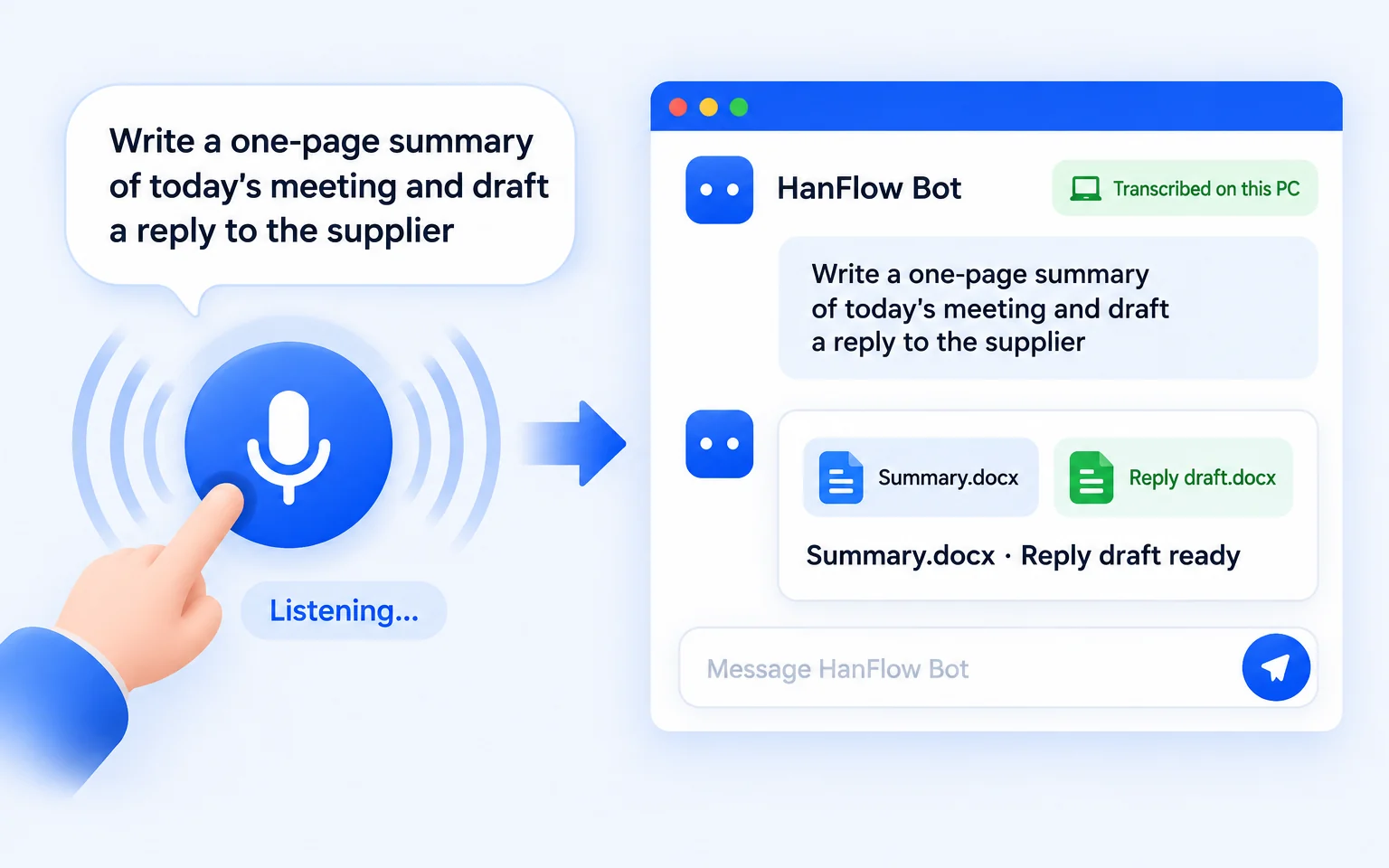
🎤 Voice input
Press the mic button and speak — your request appears as text. Speech is recognised on your PC; the speech engine is downloaded once, the first time you use it.
Your own AI assistant
Minutes, images, calendar events, email replies and software development. Images shown are illustrative.
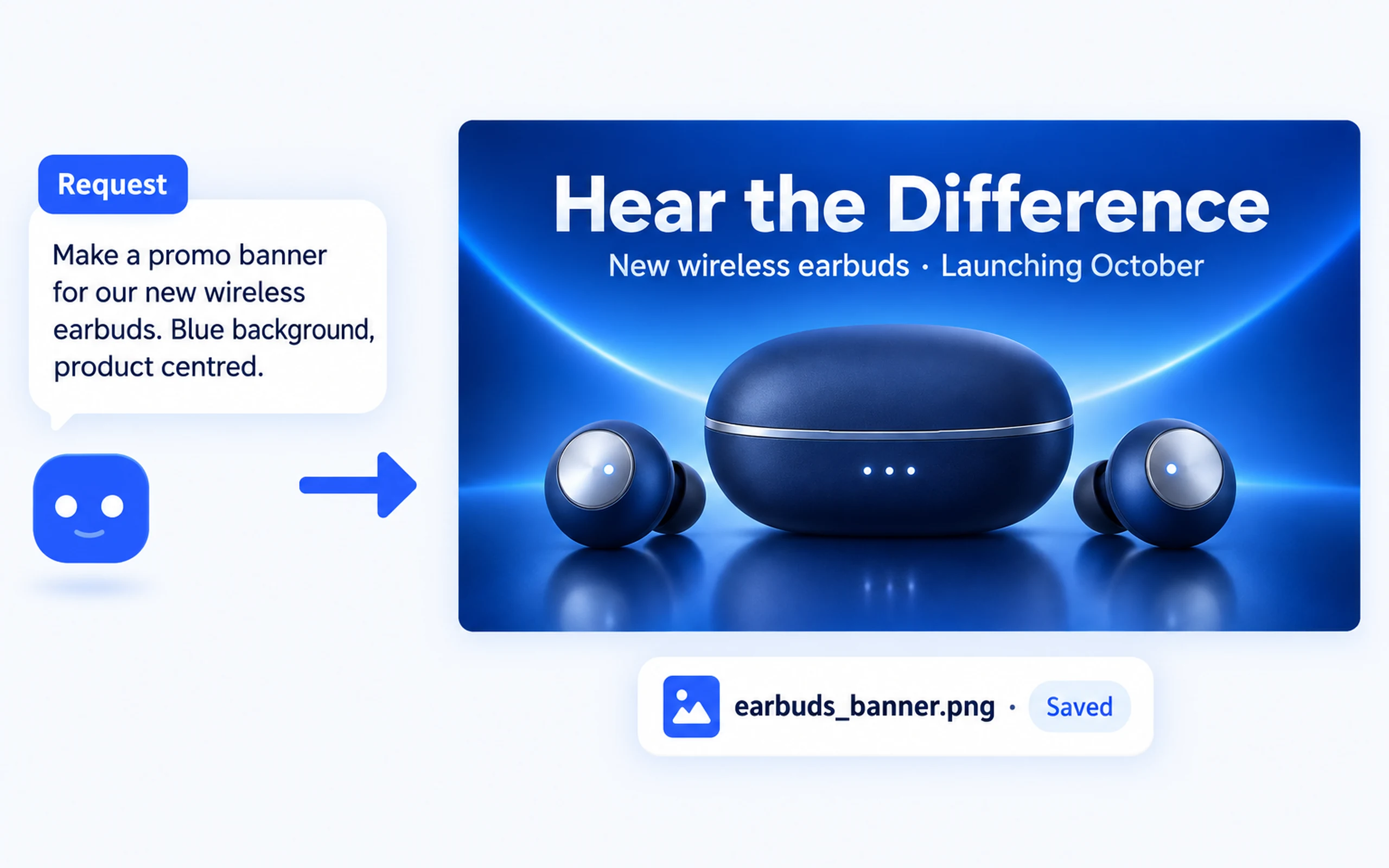
Describe what you need and the bot generates an image saved as a PNG file. Image generation requires an image API key.
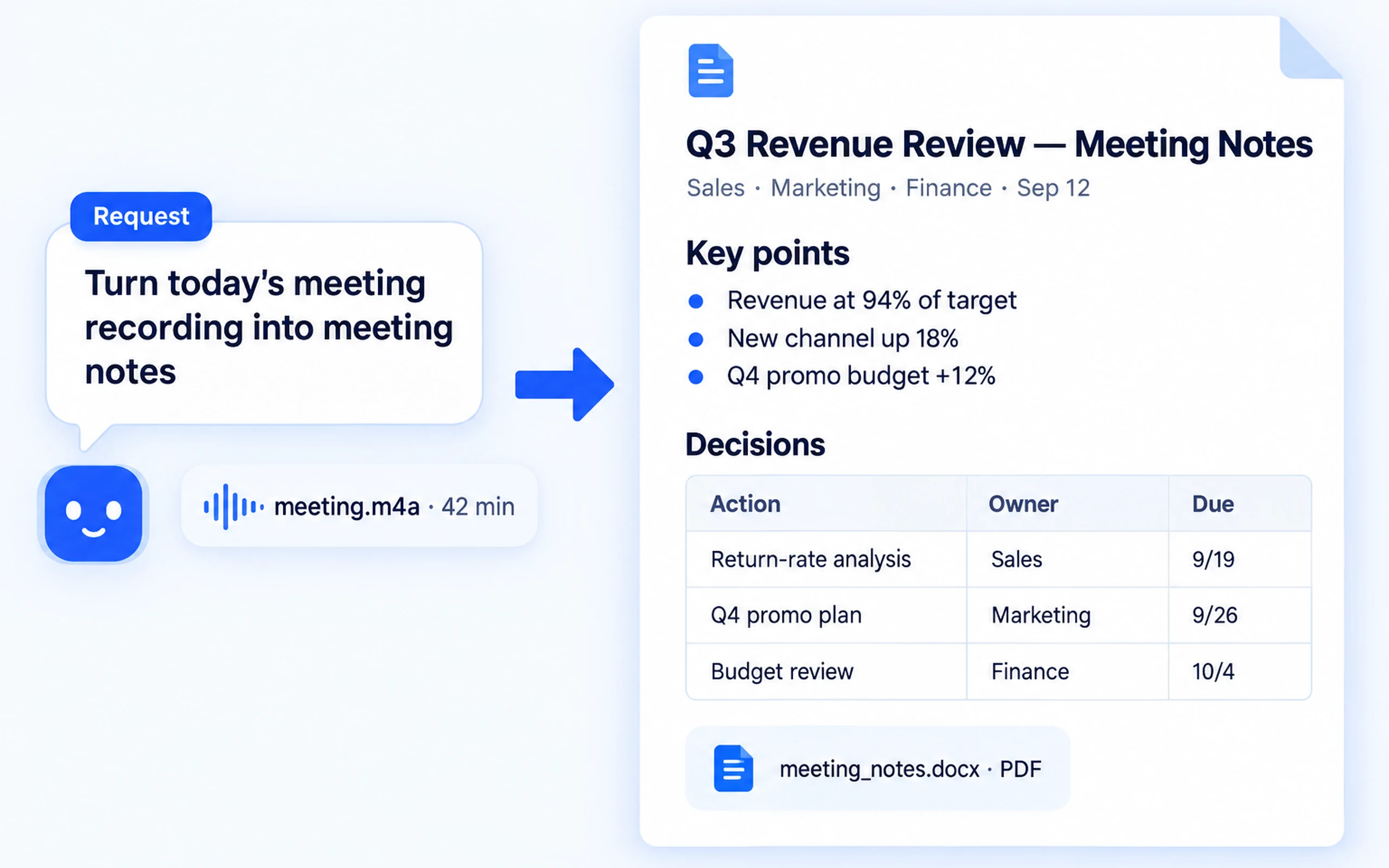
Transcribes meeting recordings on your PC, then organizes key points, decisions, and action items into a single-page Word or PDF file.
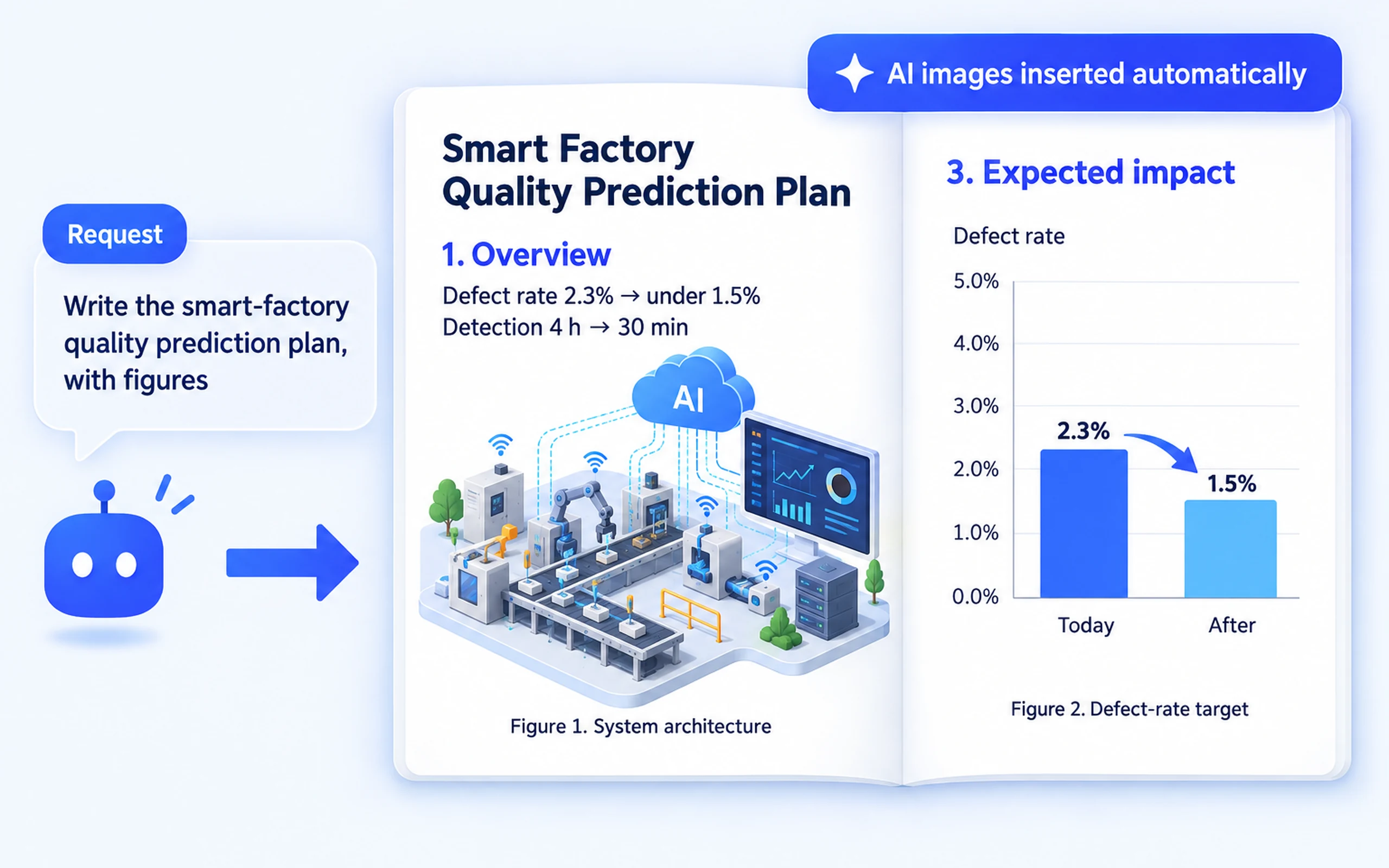
Finds placeholders like «Figure 1» and «Figure 2» in your proposal and generates matching images for each slot. You get a complete, illustrated document in one step.
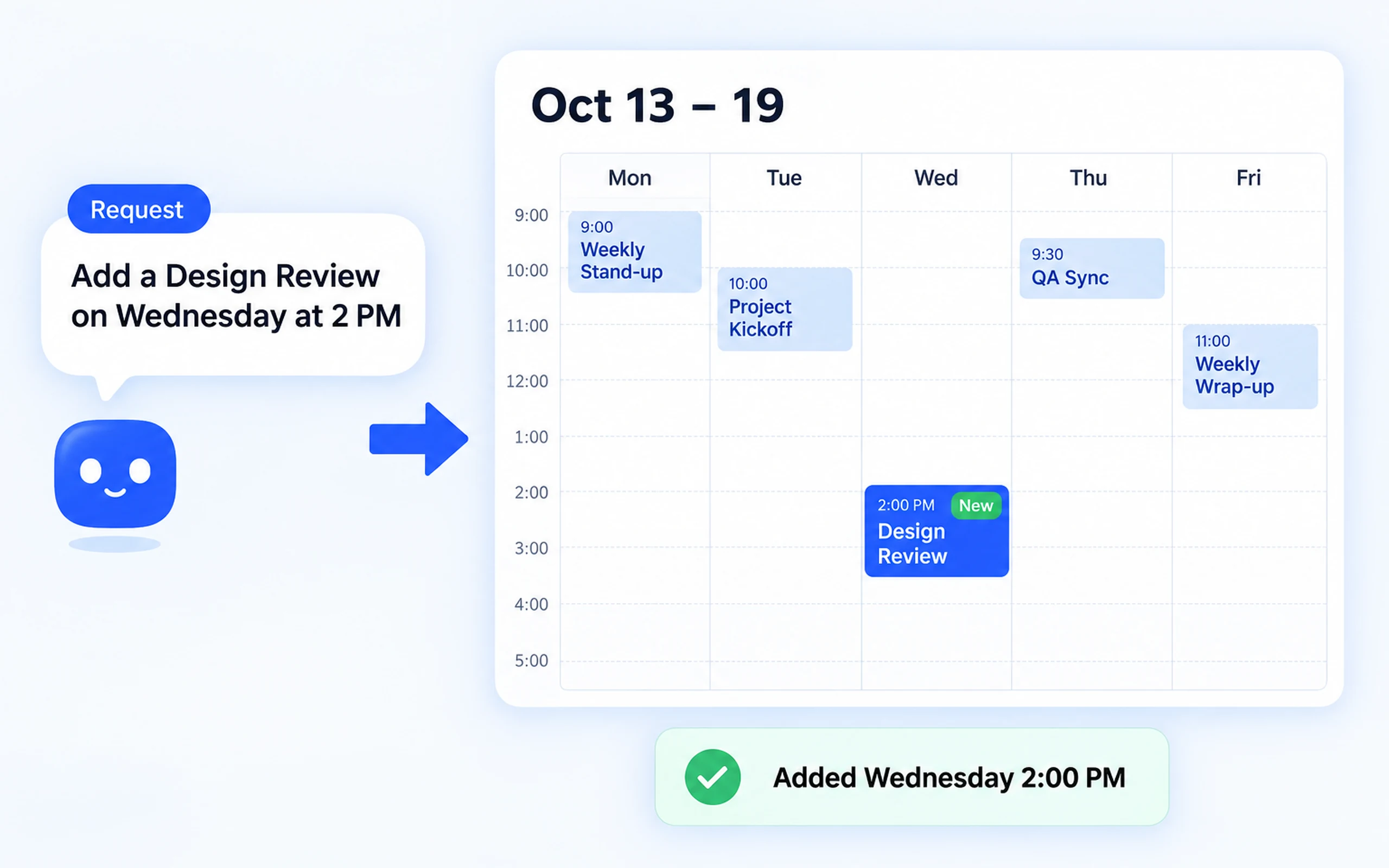
Ask the bot and it adds or edits events in Google Calendar. Requires connecting your Google account.
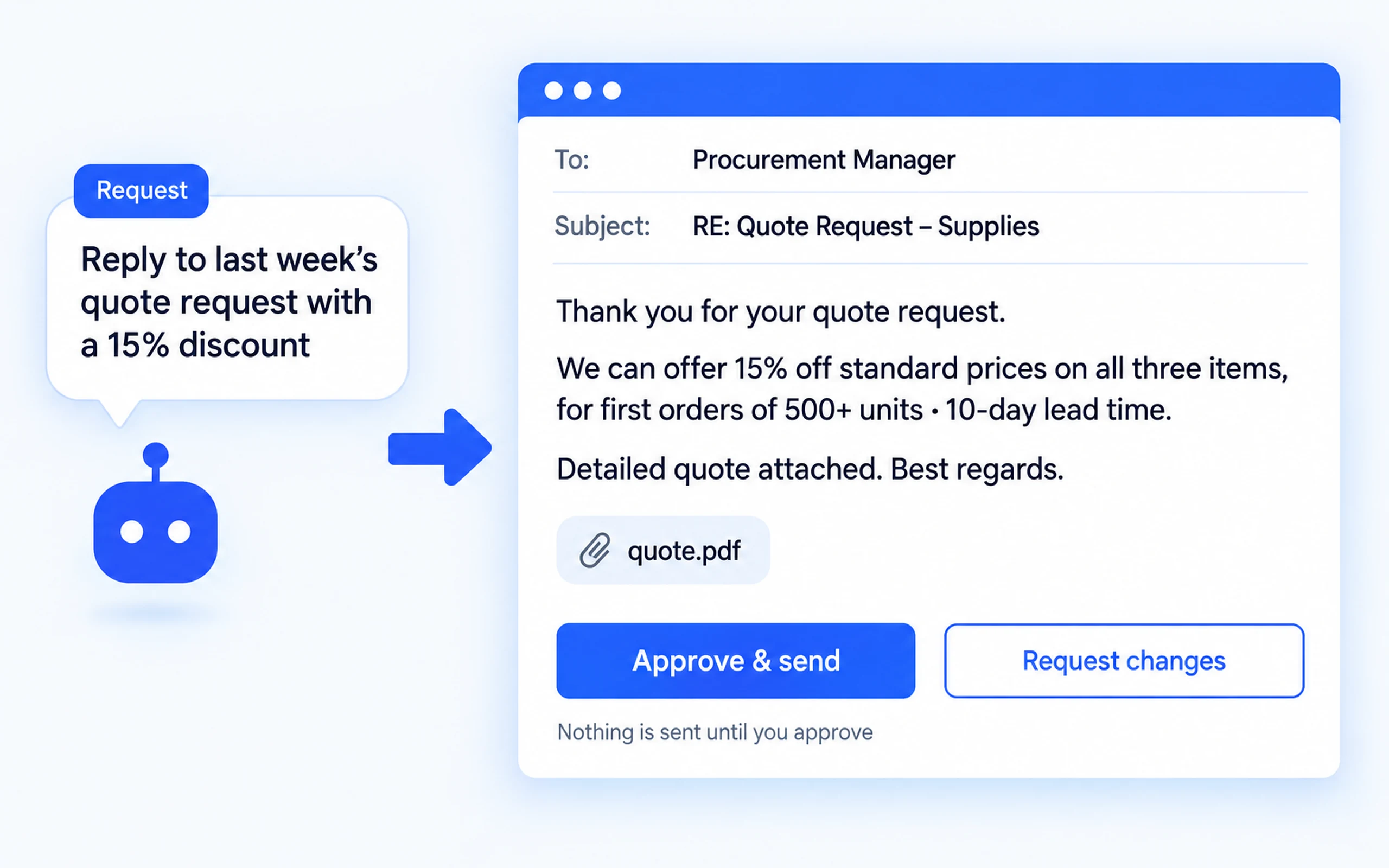
Reads incoming mail and messages and drafts replies in your style.
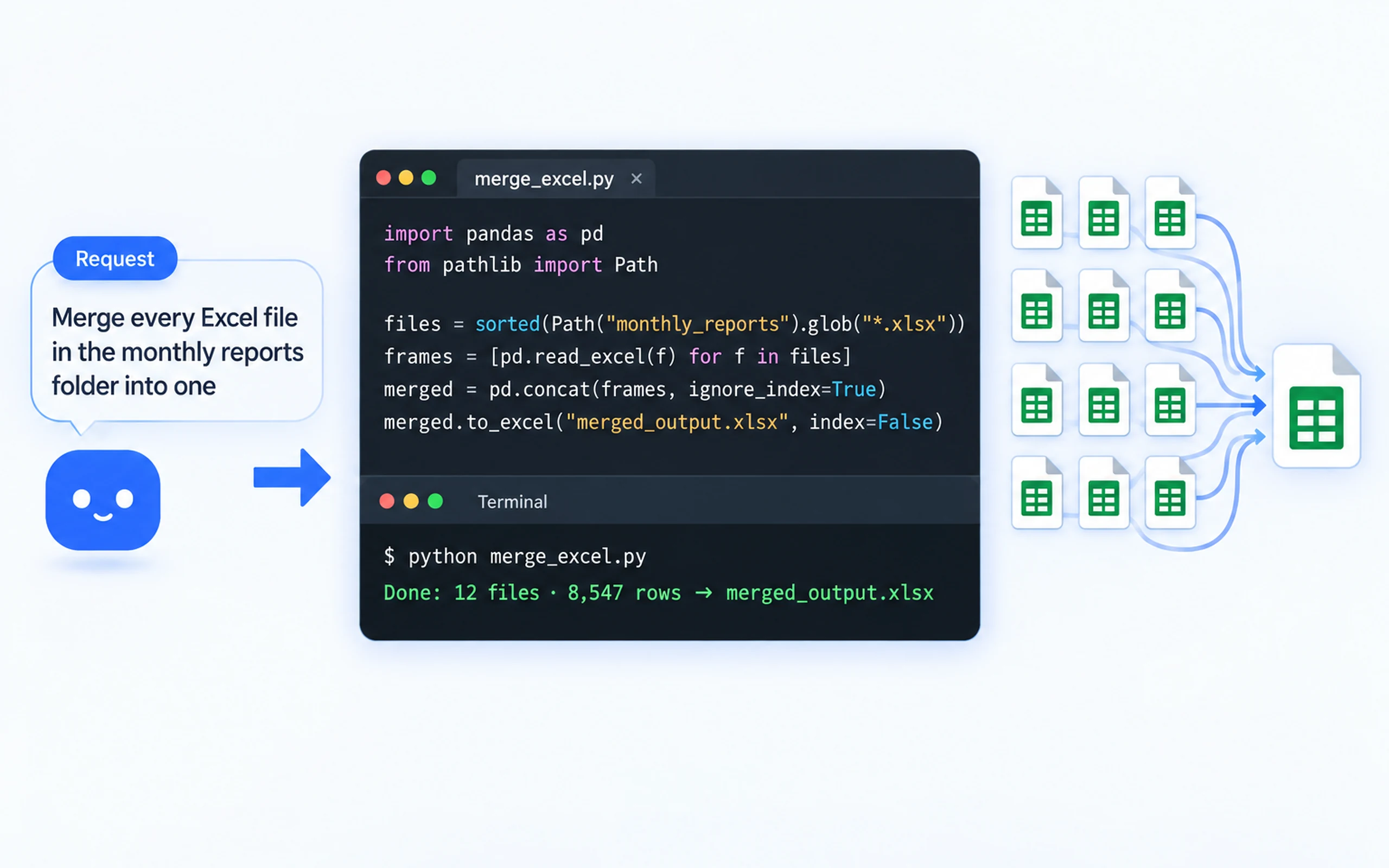
Creates files on your PC, runs them and refines them as it builds programs and scripts.
Lightweight install
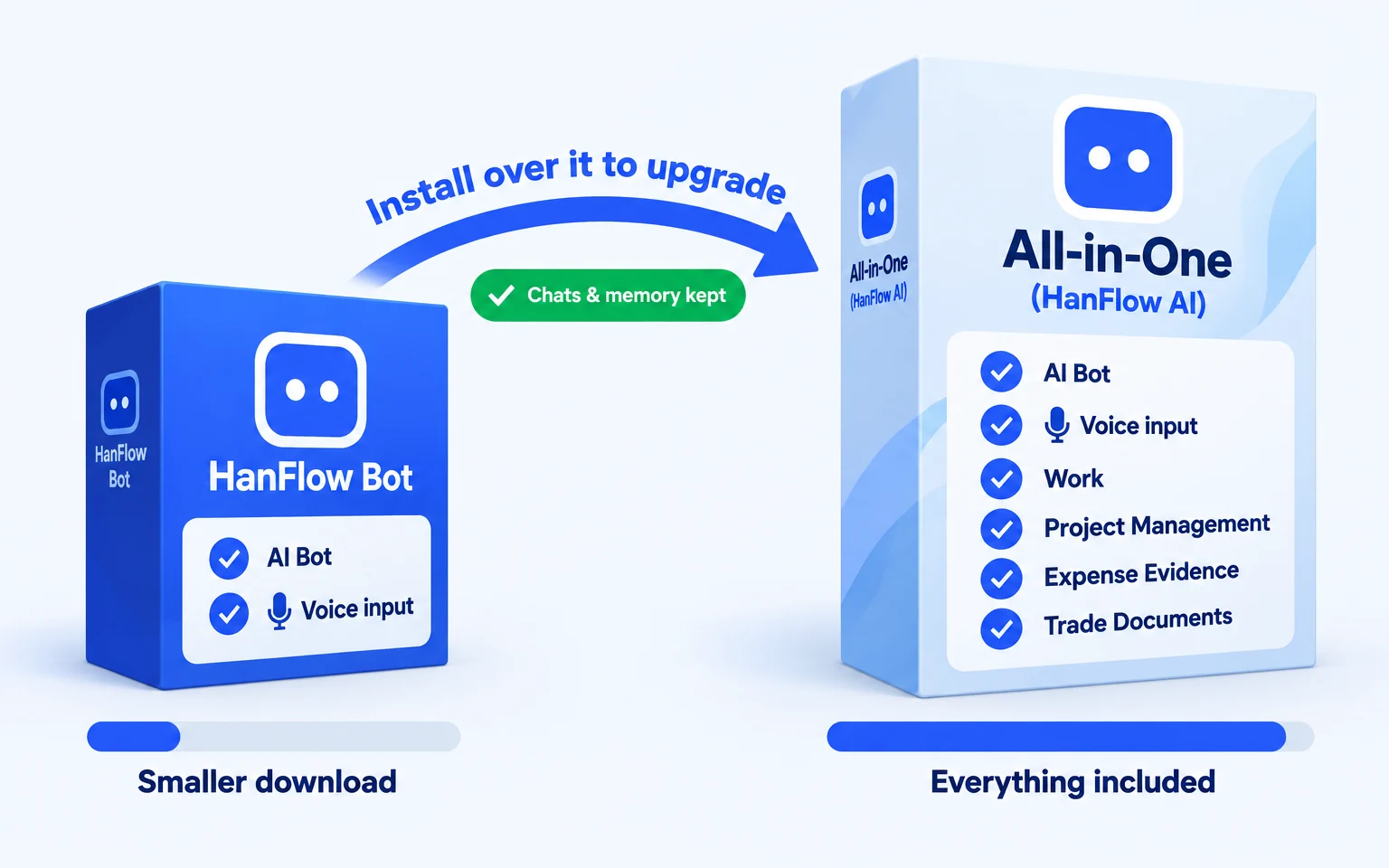
HanFlow Bot installs only the AI bot and voice input, so it is lighter than the all-in-one installer. Install the all-in-one installer over it later to upgrade in place.
Hand work to the bot on your office PC from your phone

Install HanFlow Bot on your office PC.
Connect your Claude or GPT subscription account.
Send work to the bot on your PC from your phone, wherever you are.
Connect your AI subscription account after installing and you are ready to go. Phone requests work while your office PC is on and HanFlow Bot is running.
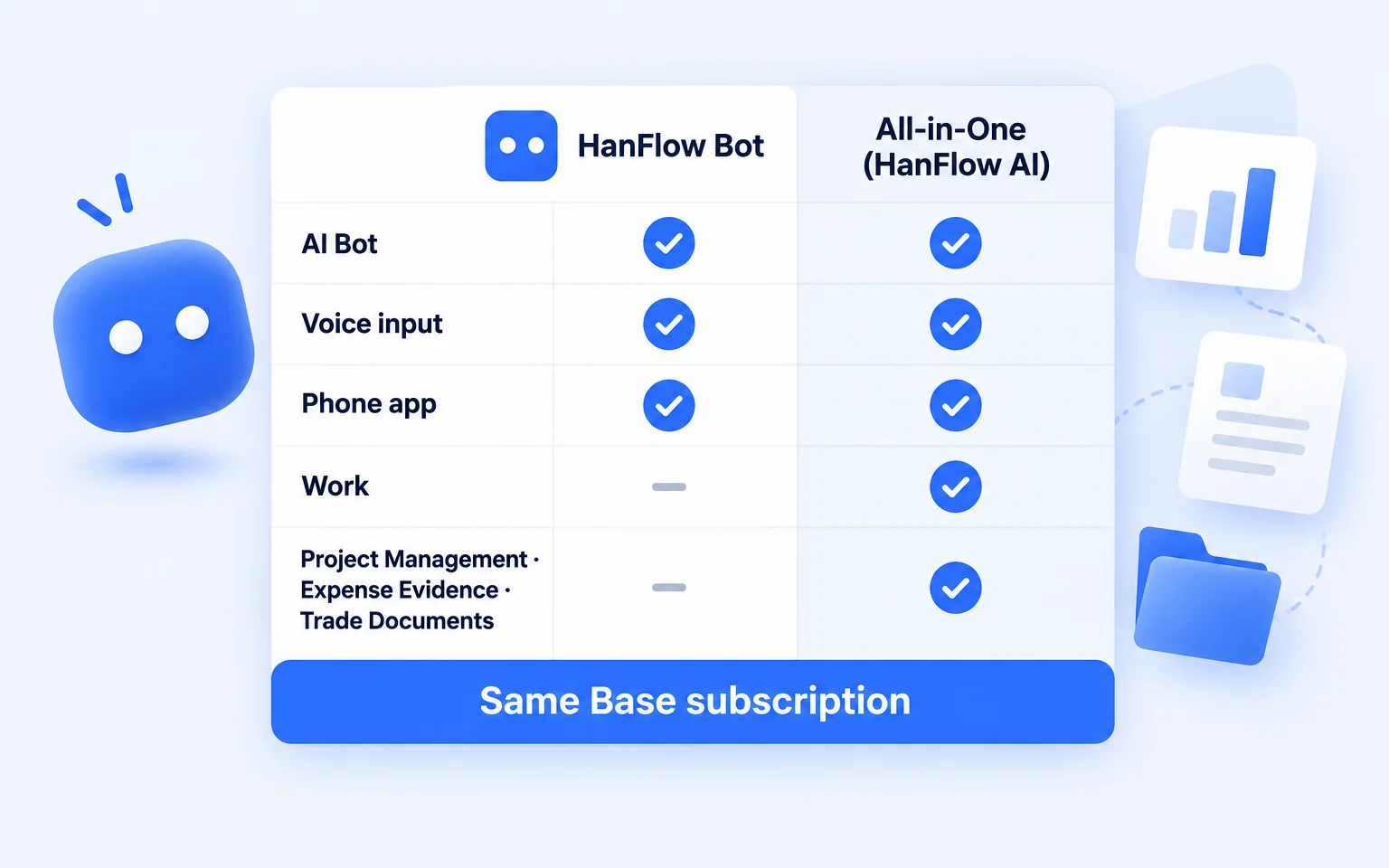
Both run on the same Base subscription. Install the all-in-one installer over HanFlow Bot to upgrade — conversations and memory carry over.
| HanFlow Bot | All-in-One (HanFlow AI) | |
|---|---|---|
| AI assistant (documents, images, calendar, message replies, code) | ✓ | ✓ |
| Voice input | ✓ | ✓ |
| Send work from the phone app to the bot while it is running on your PC | ✓ | ✓ |
| Work Manager (minutes, reports, slides) | — | ✓ |
| Project, Expense and Trade Managers | — | ✓ |
| Install size | Smaller | Larger (all managers included) |
| Subscription | Same Base subscription (add-on managers billed separately) | |
Yes. You need one account — a Claude subscription (Claude Code) or a GPT subscription (Codex). API keys are not supported, and the HanFlow price does not include that subscription. AI image generation needs a separate image API key.
No, both use the same Base subscription. The payment page shows the English product name HanFlow AI Assistant — Base (Monthly).
Yes. Install the all-in-one installer over HanFlow Bot. It uses the same install folder, so conversations and memory are kept.
Yes, while your office PC is on and HanFlow Bot is running on your PC. The phone app connects to the bot on your PC to send requests and receive files. Use on other devices →
Every document and file the bot creates is saved on your PC.
Blog
The AI assistant for real office work
The all-in-one installer includes every manager, so it is larger. When the dedicated HanFlow Bot installer is ready, this button switches automatically.
If the Mac app doesn't update itself, download and install this version once — updates are automatic after that.
Requirement: your own Claude or GPT subscription account (billed separately). See requirements →
Install HanFlow Bot on your PC first. The phone app (Google Play and App Store) connects to the bot running on that PC.
Requires a Windows or Mac PC.
📱 HanFlow Bot phone app
The phone app connects to HanFlow Bot running on your PC. Install HanFlow Bot on your PC as well.