
AI Agent for Meeting Scheduling — Free Slots, Drafts, You Approve
HanFlow Bot checks your connected calendar for free slots, drafts replies and invites for you, and sends nothing until you approve.
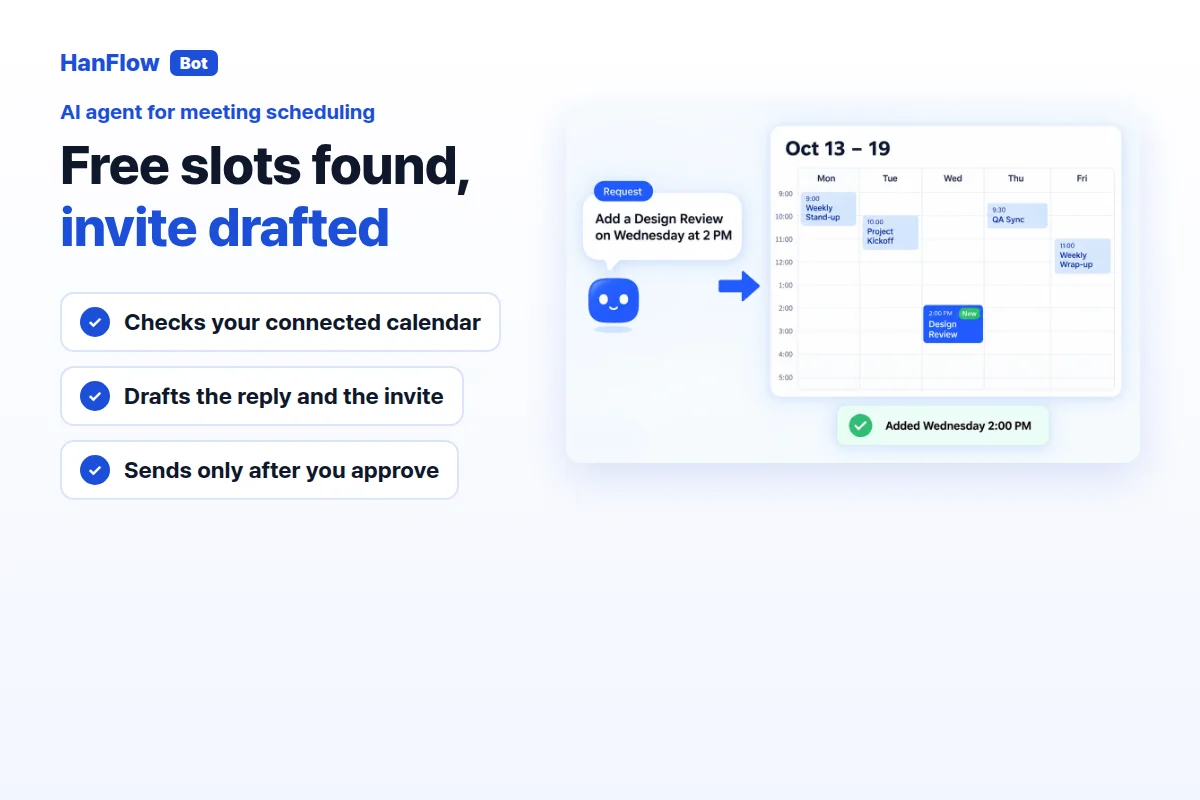
Scheduling a meeting usually means going back and forth by email and checking calendars for a time that works.
HanFlow Bot helps with that back-and-forth. It checks your connected calendar, proposes free slots, and drafts the reply and the invite. You approve before anything goes out.
What the bot does vs. what you do
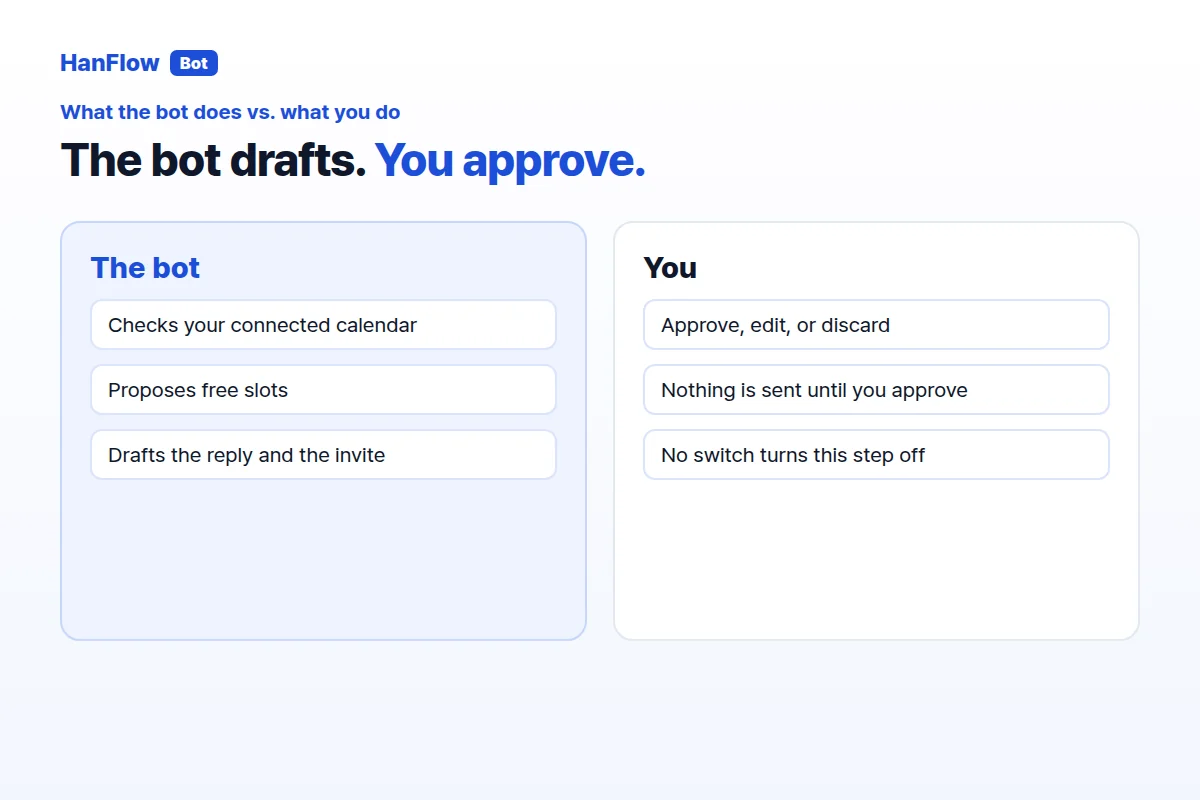
The bot checks your connected calendar for open times. It drafts a reply proposing available slots and writes an invite draft.
You decide what gets sent. The approval card shows the incoming message beside the outgoing draft. Approve it, edit it, or discard it. Nothing is sent until you approve.
Find free slots and draft the reply and invite
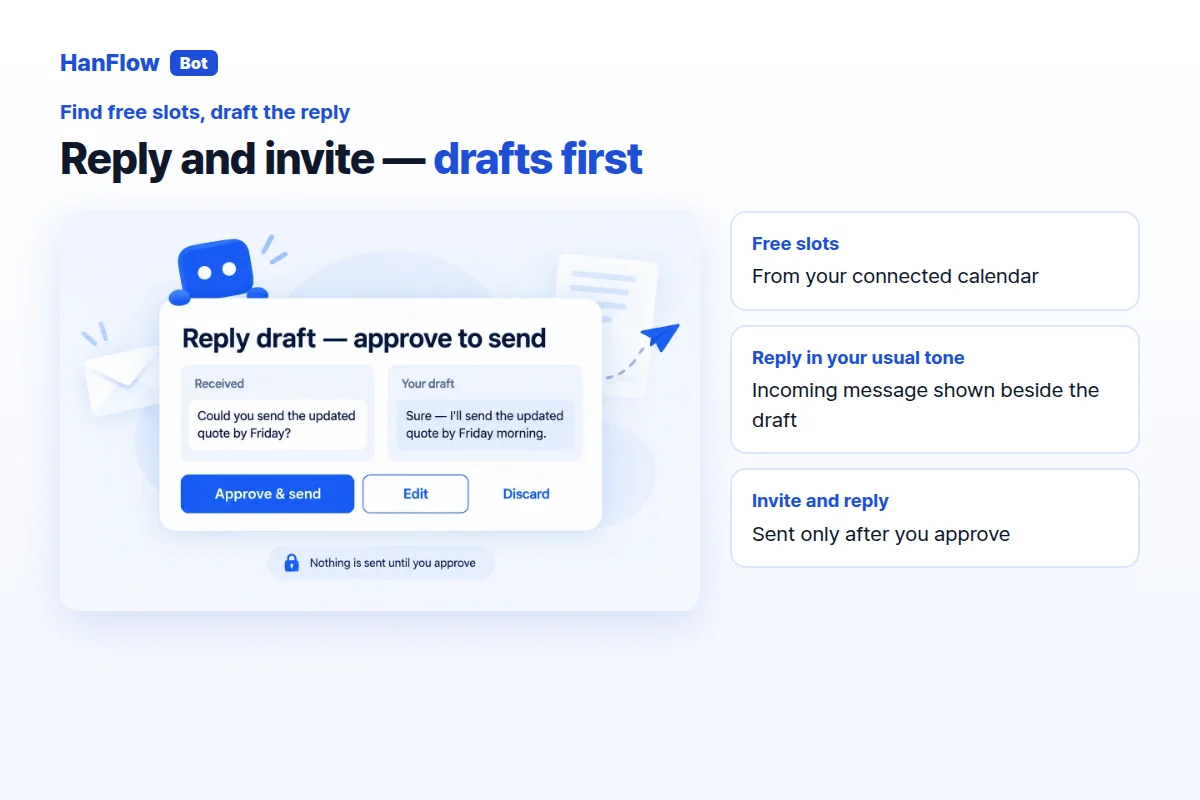
Tell the bot what you need — type the instruction or speak it. HanFlow Bot runs speech recognition on your PC, so voice works too.
The bot opens your connected calendar, scans for open slots, and writes a reply in your usual tone suggesting available times. It also prepares an invite draft. If you only know a colleague's name, the bot looks them up in your address book to find their email.
Both the reply and the invite appear on an approval card. You see the incoming message on one side and the outgoing drafts on the other. Approve and the bot sends them. After sending, it checks the sent folder for the result.
Dates from conversations go into your calendar
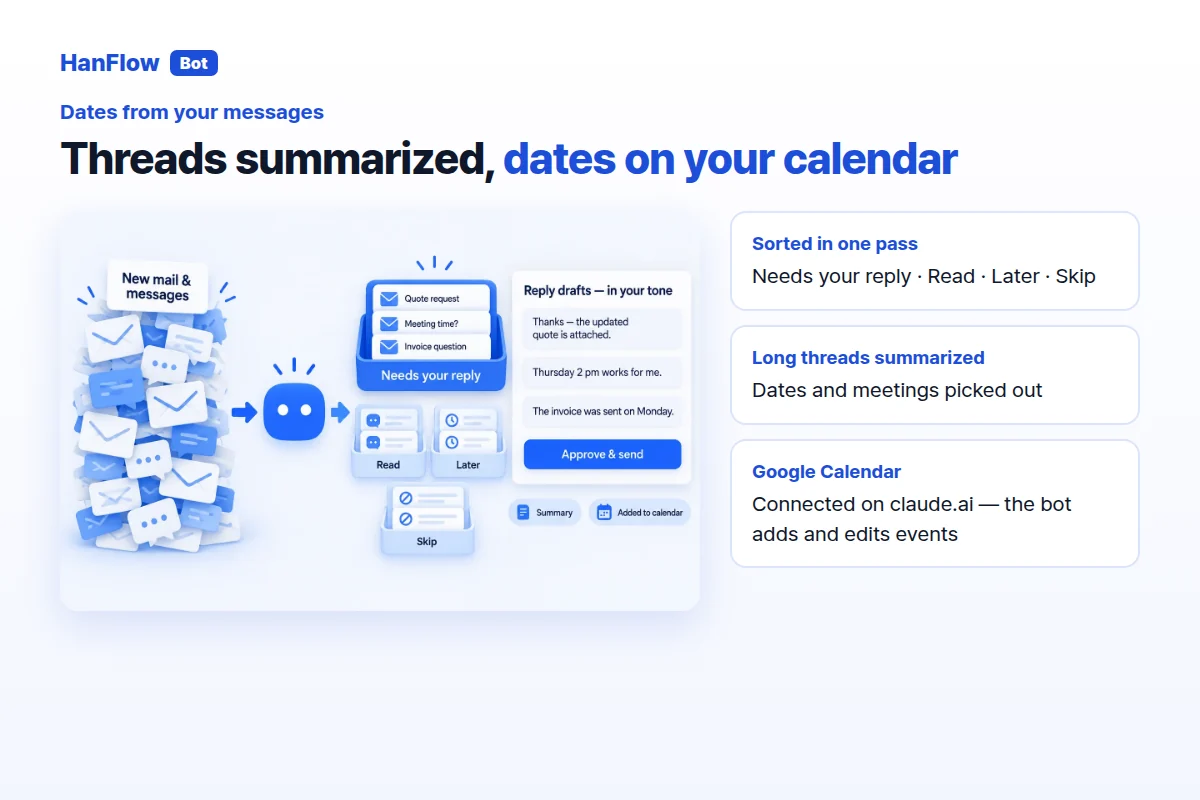
The bot reads your email, messenger, and text messages in one pass and sorts them: needs your reply, read, later, skip. It summarizes long threads and adds dates and meetings to your connected calendar. When you have Google Calendar linked through claude.ai, the bot can create and edit events there directly.
Approve from your PC or phone
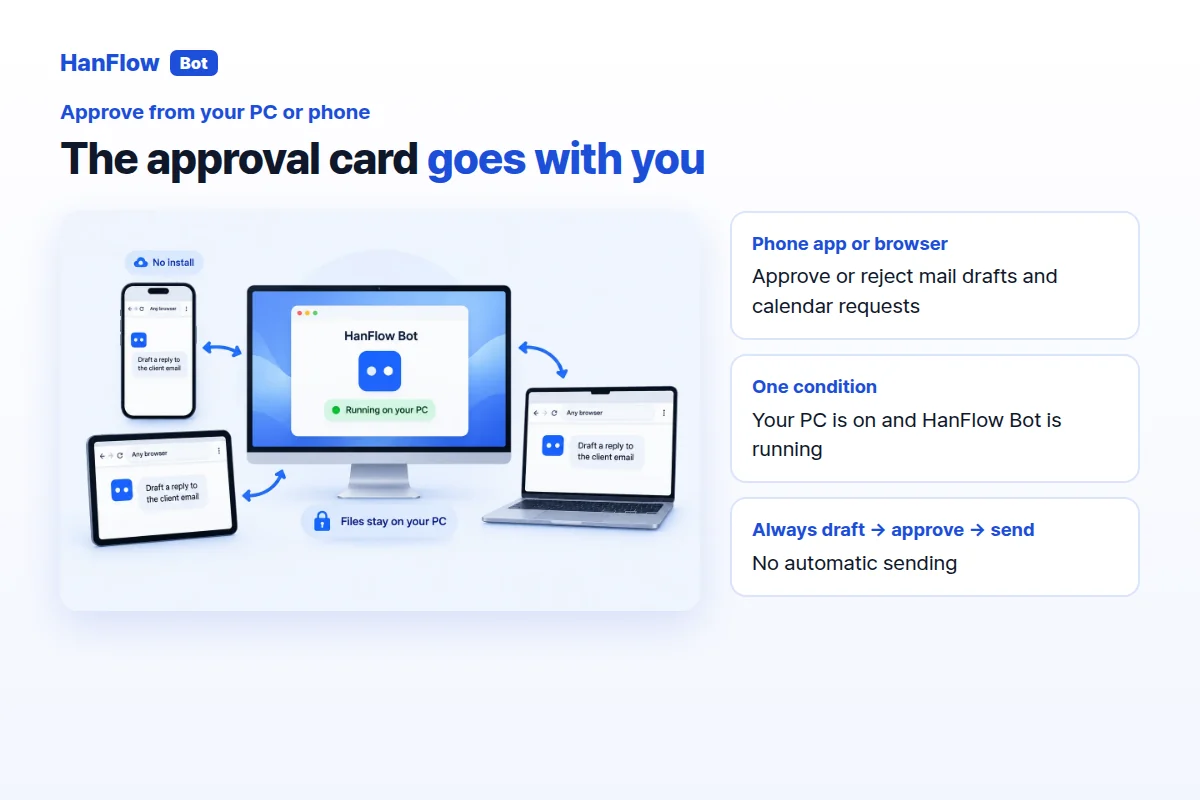
Every outgoing message — reply or invite — stops at an approval card. You can review and approve from the PC where HanFlow Bot is running, from the Android app on Google Play, or from a browser on another PC, phone, or tablet.
One condition: your PC needs to be on and HanFlow Bot needs to be running. The phone and browser options relay instructions to the bot on your machine. Nothing is sent automatically, and there is no setting to turn off this step.
Getting started
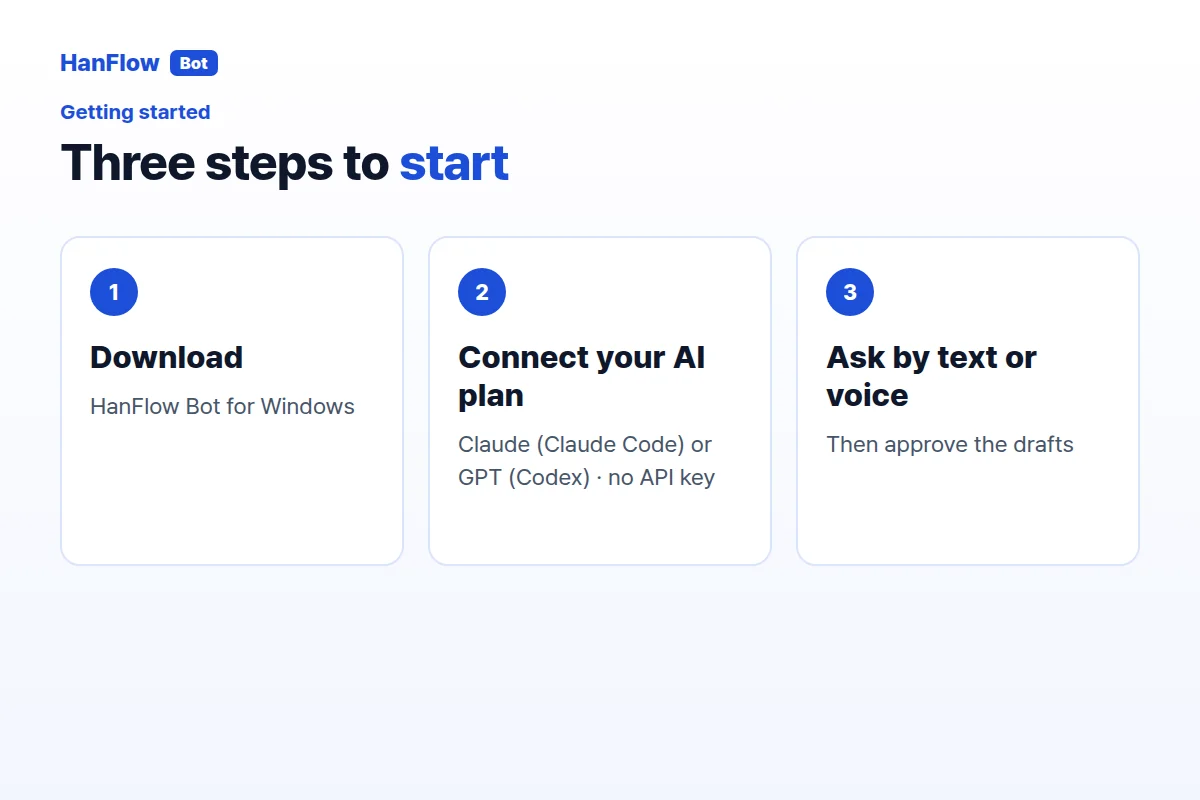
Download the Windows app from hanflowbot.com/download/bot/win. The bot runs on your PC and controls a browser window there.
Connect your AI subscription. HanFlow Bot works with your Claude (Claude Code) or GPT (Codex) account. No API keys — just your existing subscription. The AI provider's fee is separate from HanFlow Bot's pricing.
Pricing. HanFlow Bot runs on the Base subscription. Your first subscription includes one extra free month, applied after your paid period ends. See pricing for details.
You can set up multiple bots, each with its own memory, conversation history, and engine settings. Set a schedule, and a bot works on its own at that time.
Frequently asked questions
Does the bot send invites on its own?
No. Every invite and every reply is shown to you as a draft first. You approve, edit, or reject it. Only approved messages are sent. There is no way to bypass this step and no switch to turn it off.
Which calendar does it work with?
Google Calendar, connected through claude.ai. The bot reads your events to find free slots and adds new ones when a meeting is confirmed.
Can I give instructions by voice?
Yes. HanFlow Bot includes speech recognition that runs on your PC. Speak your request — "put a design review on Wednesday at 2 PM" — and the bot handles it the same as a typed instruction.
Do I need the PC on all the time?
Yes, the bot runs on your PC. To use it or approve drafts from your phone or another browser, the PC must be on and HanFlow Bot must be running.
Less scheduling back-and-forth — HanFlow Bot finds the open slots, drafts the messages, and waits for you to approve.