
AI Agent for Grant Portal Spending — It Fills the Form, You Approve
HanFlow Bot pulls the invoice, picks the budget line, attaches evidence, and matches vendor and account. You approve right before register or e-sign.
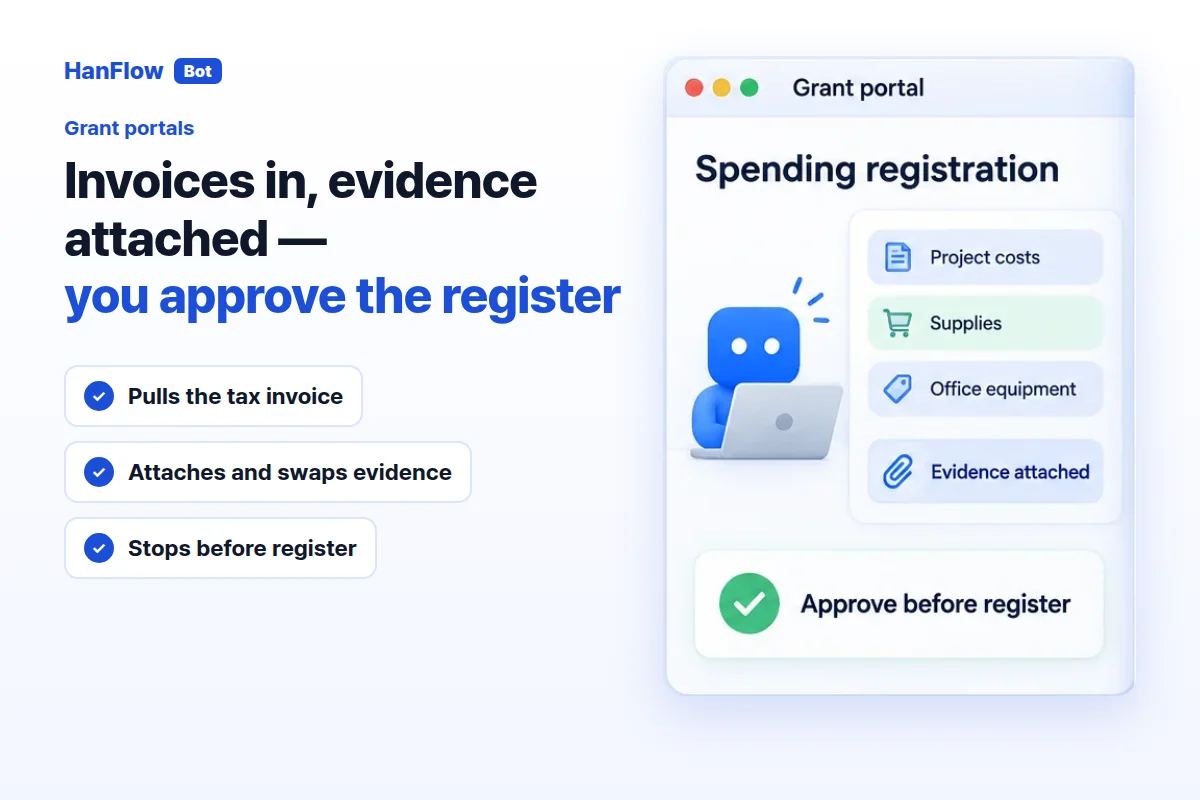
Registering spending on a grant portal means looking up invoices, retyping figures, picking the budget line, uploading evidence, and checking the vendor. HanFlow Bot does this in a browser window on your PC, then stops right before register or e-sign. You review the filled screen and approve it. Nothing is registered without your approval, and e-signing stays with you.
What the bot does vs. what you do
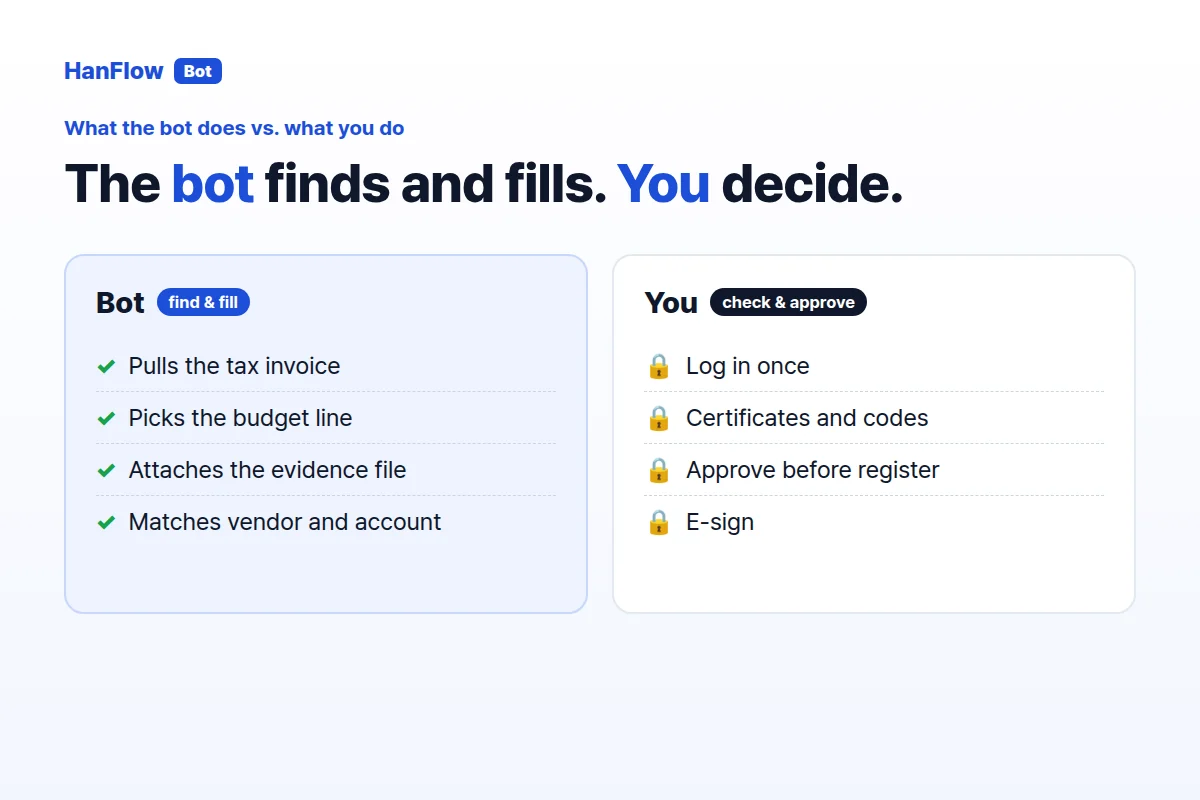
The bot opens the grant portal in a browser window on your PC. It pulls the tax invoice, fills in the budget line, attaches evidence files, and checks that the vendor name and bank account match what appears on the invoice. When everything is filled, it shows you the screen right before registration or e-signature. It also swaps attachments if you need a replacement, and after you register, it looks up the payment status to confirm the submission went through.
You log in once in that browser window. If the session expires or a security prompt appears, the bot pauses and tells you. Digital certificates, SMS verification codes, app-based identity checks, simplified authentication prompts, and CAPTCHAs are yours to handle. You review the filled form and approve it — only then does registration go ahead. E-signing with your certificate is yours. Nothing is submitted without your approval.
The bot pulls the invoice and fills the form
Tell the bot what to register — type the instruction or speak it. HanFlow Bot includes a voice-input engine that runs speech recognition on your PC, so you can describe the expense and the bot starts working.
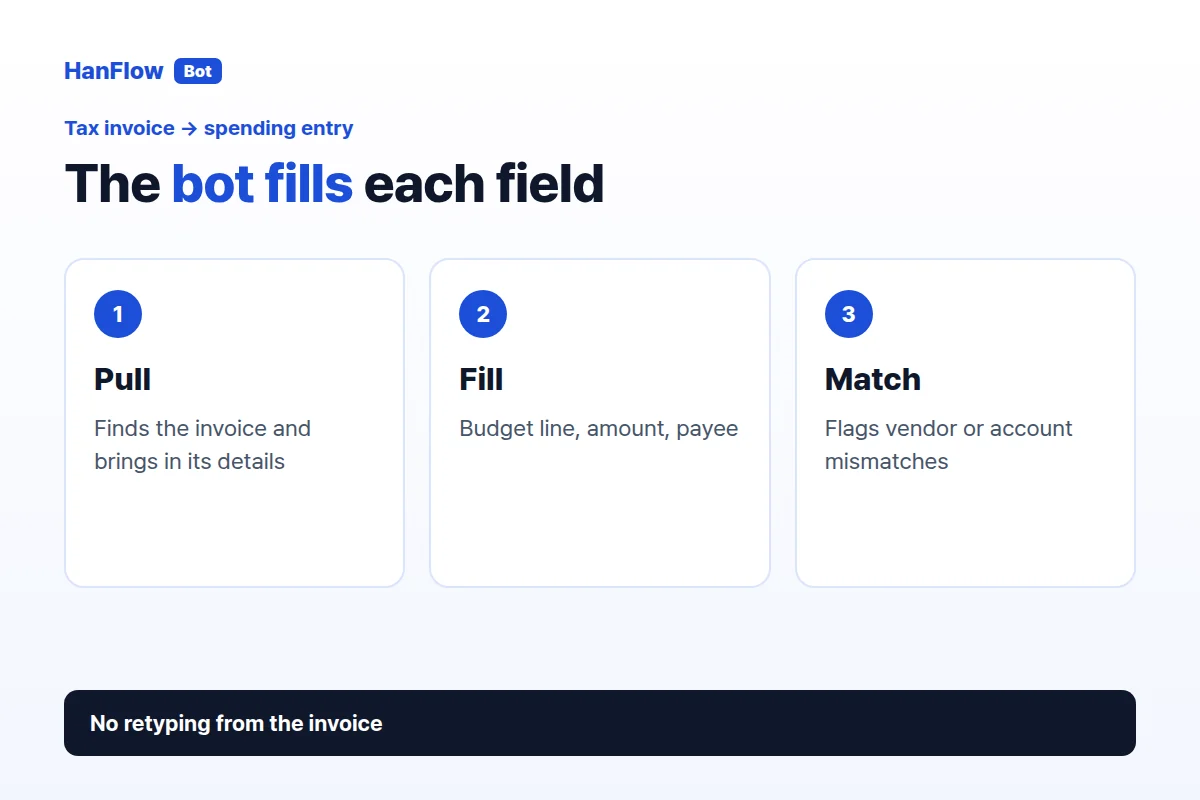
The bot navigates to the spending registration screen on the portal. It pulls the tax invoice or e-invoice that is already in the system, so you do not retype the supplier name, date, item description, or amount. It reads the invoice details and selects the budget line that matches the expense category. It fills in the vendor information and checks that the vendor name and bank account match the invoice. If something looks off — a budget line that does not fit, a vendor account that does not match, a date that disagrees with the invoice — the bot flags it on the screen.
You see the filled form in the PC window or on your phone. If a field needs changing, ask the bot and it shows the corrected screen again. Only what you approve moves forward.
When there are multiple invoices to register, the bot fills each form in turn. You review each one before it moves to the next.
Attach evidence, swap when needed
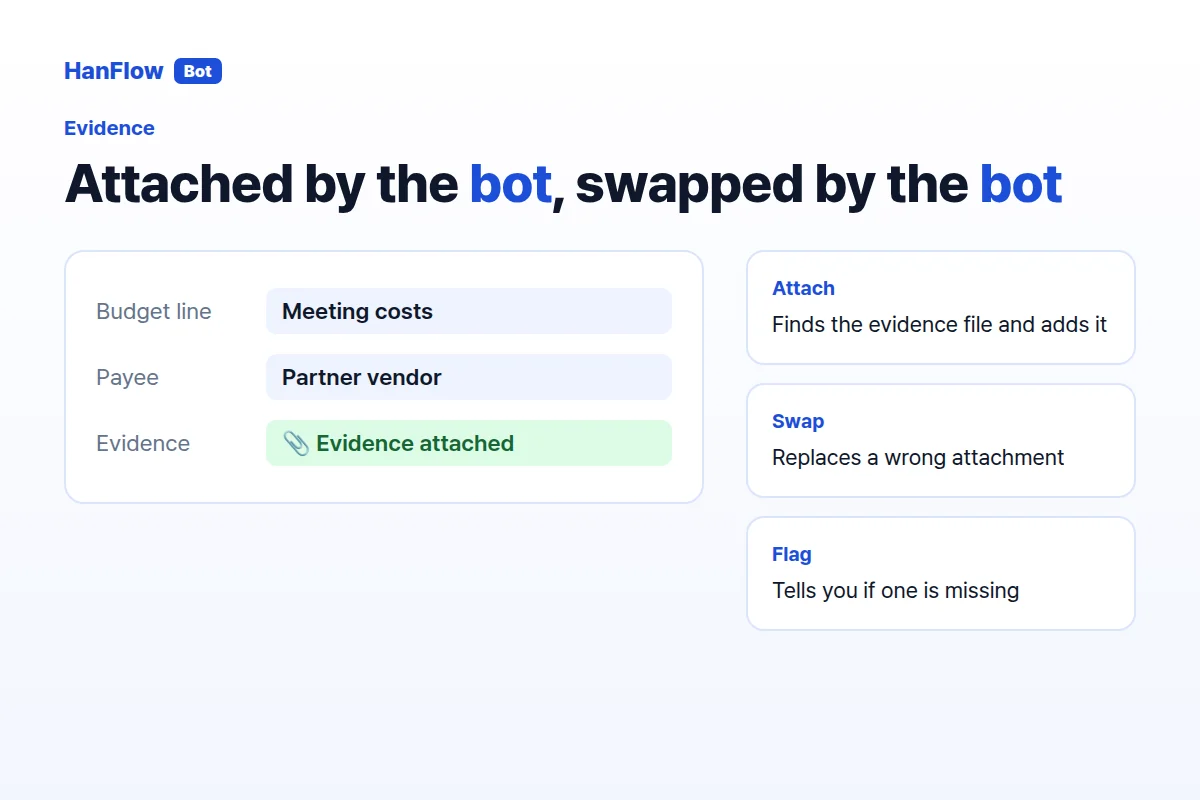
Grant portals almost always require evidence files — receipts, tax invoices, contracts, delivery confirmations, or bank statements. The bot attaches the right file to each registration entry.
It works with files stored on your PC. You describe which file to attach, and the bot finds it, uploads it to the correct field on the portal, and confirms the upload completed. If a file is missing or the name does not match what you asked for, the bot tells you before moving on.
Sometimes the attachment needs to change after the form is already filled. A corrected invoice arrived, or you picked the wrong receipt. Tell the bot which file to replace and what the new file is. It removes the old attachment, uploads the new one, and shows you the updated screen for your approval. No need to navigate back through the portal menus yourself, find the right entry, and redo the upload step.
If several entries need evidence attached, the bot handles them one by one and shows you each result.
It stops right before register or e-sign
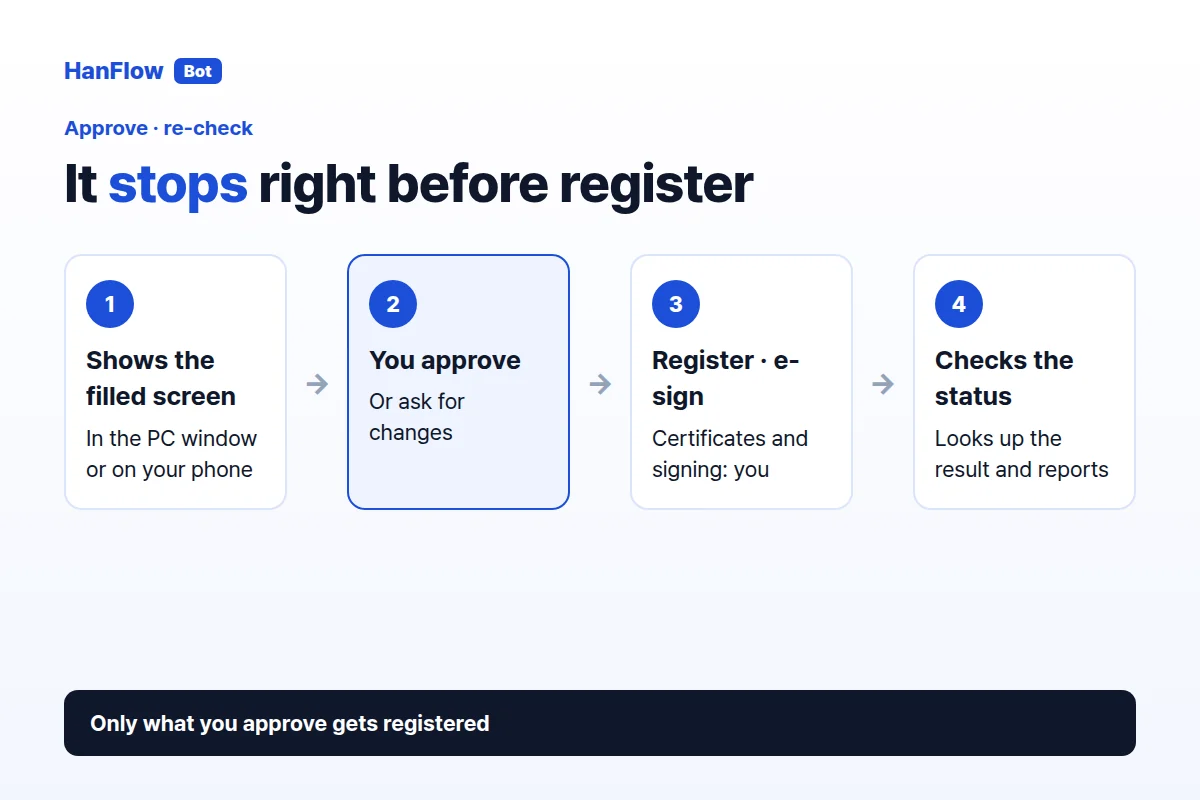
Registration and e-signature are steps you cannot undo. The bot fills every field, attaches every file, and then stops. It shows you the final screen — the one right before the register or e-sign button.
Before it shows you that screen, the bot can compare what it filled against the original invoice and evidence, and flag mismatches such as an amount, a date, or a missing attachment. You see the budget line, the vendor name, the bank account, the amount, and the attached evidence file. If anything needs to change, tell the bot and it updates the form and shows you the corrected version. When you approve, registration goes ahead. Certificates and e-signatures stay with you.
This is a hard boundary. Nothing is registered without your approval.
After registration, the bot opens the payment status or processing status screen on the same portal. It looks up whether the new entry appears, checks the status, and reports back. If you approved a batch of entries, it checks each one. You get a second confirmation without navigating to a different page yourself.
If you are away from your desk, you can see this confirmation through the Android app on Google Play or through any mobile browser, as long as your PC is on and HanFlow Bot is running.
What you need
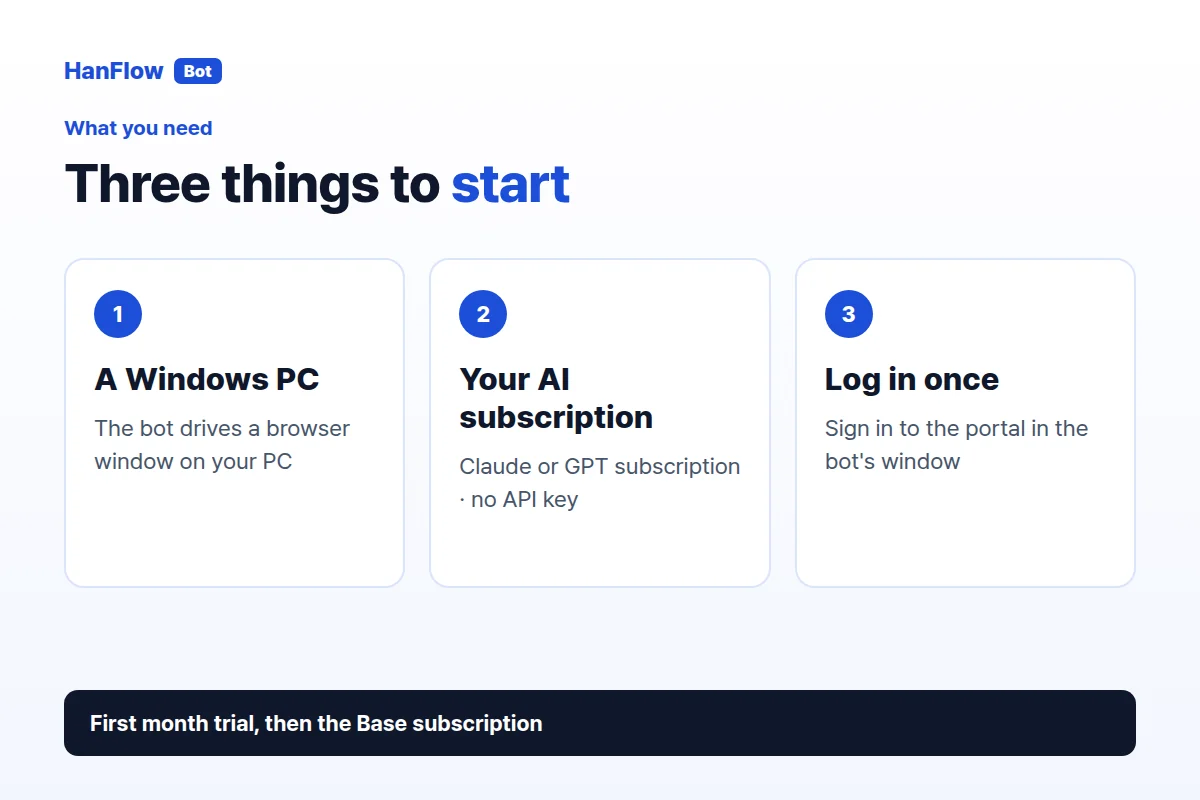
A Windows PC. HanFlow Bot runs on your machine and controls a browser window there. The PC needs to be on and the app running whenever you want the bot to work, including when you check from your phone.
Your own AI subscription. The bot connects to your Claude (Claude Code) or GPT (Codex) account. No API keys to enter. HanFlow Bot's subscription does not include the AI provider's fee. AI-generated images require a separate image API key.
One login. Open the grant portal in the browser window the bot uses and log in. When the session expires, the bot pauses and asks you to handle it.
HanFlow Bot runs on the Base subscription. Your first subscription includes one extra free month, applied after your paid period ends.
Frequently asked questions
Does the bot ever register or e-sign by itself?
No. The bot fills every field and attaches every file, then stops at the screen right before register or e-sign. Only what you approve gets registered, and e-signing stays with you.
What if the portal requires a digital certificate or phone verification?
Those steps stay with you. Digital certificates, SMS verification codes, app-based identity checks, simplified authentication prompts, and CAPTCHAs are all handled by you. Some web screens launch a PC program (some e-approval systems, for example) — those are yours to complete as well. The bot pauses at any security step and waits for you.
Can I swap an attachment after the form is filled?
Yes. Tell the bot which file to replace and what the new file is. It removes the old attachment, uploads the new one, and shows you the updated screen for approval before anything moves forward.
To learn more or download the installer, visit hanflowbot.com.