
Use Your PC's AI Agent From Your Phone or Any Browser
HanFlow Bot runs on your PC. Open a browser on your phone, tablet or another computer to reach the same bot — no install needed on the other device.
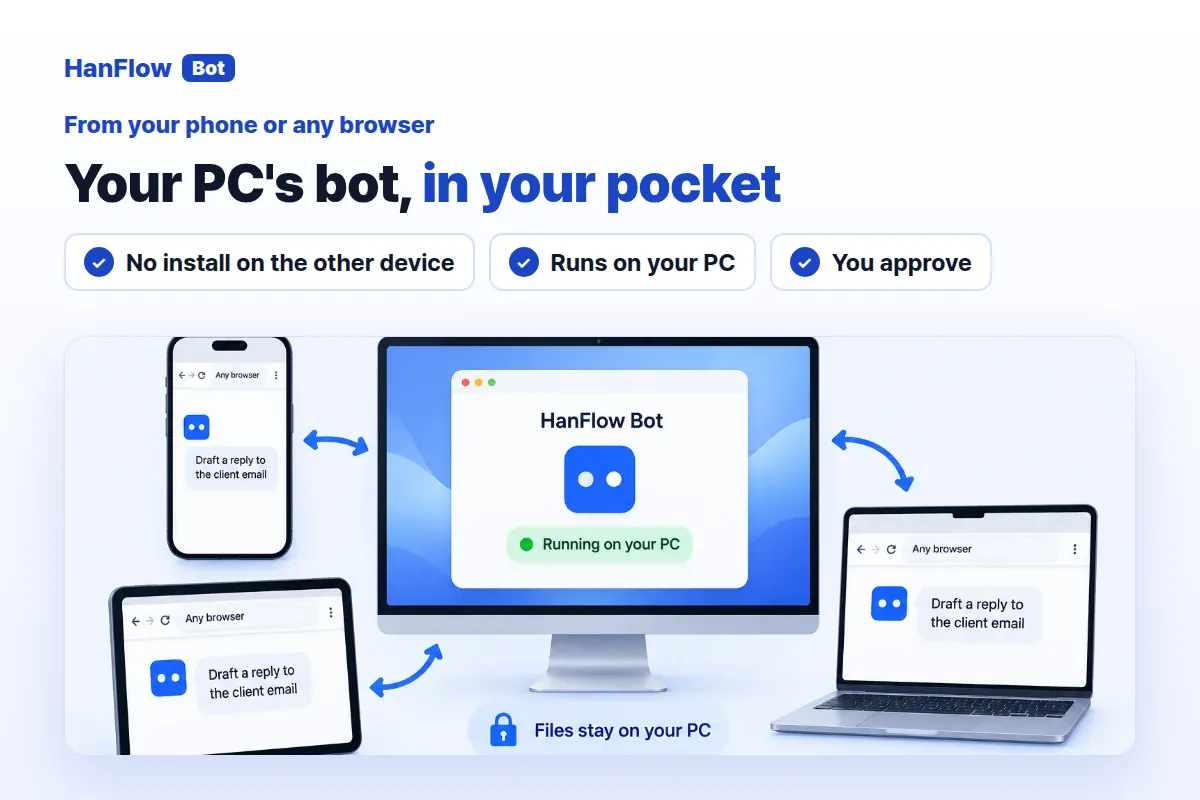
HanFlow Bot is a desktop agent app that runs on your PC. When you need to reach it from somewhere else — your phone, a tablet, a colleague's laptop — you open a browser and connect. No install on the other device, and the work and files stay saved on your PC.
How it works
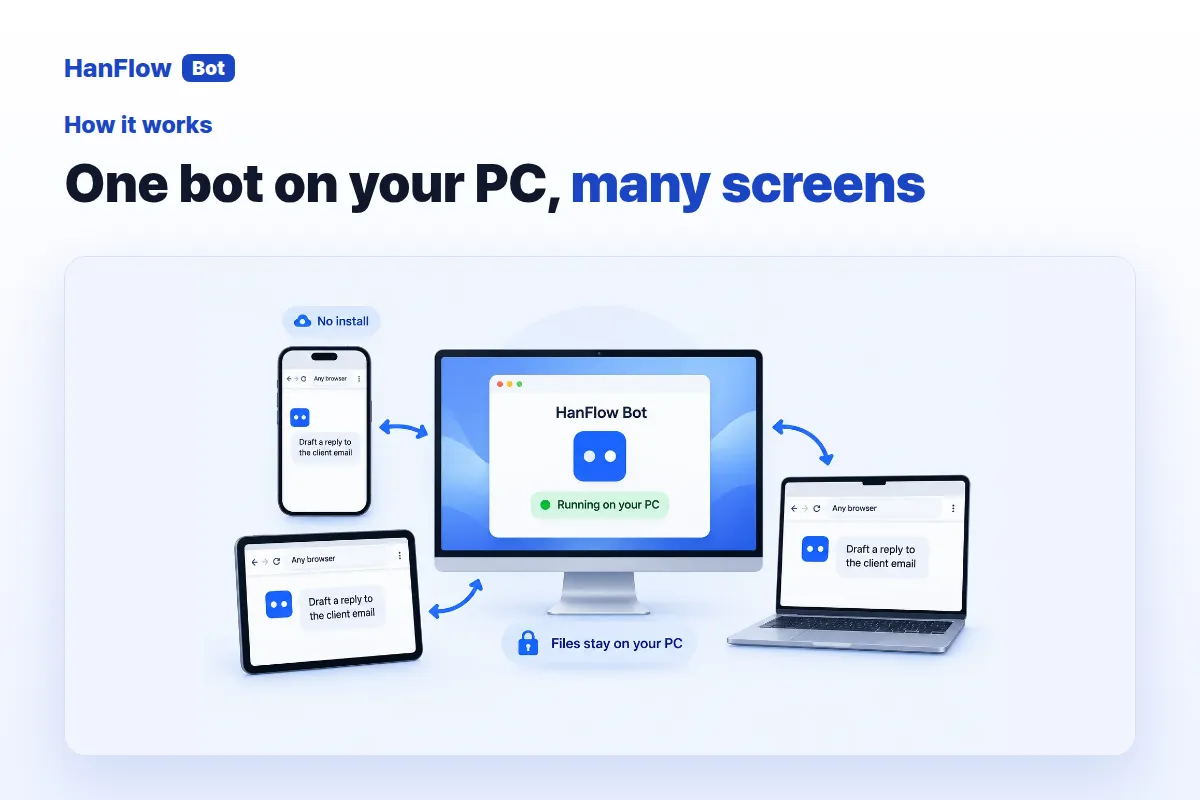
The bot stays on your PC. Every task it carries out, every file it creates, every document it drafts — all of it lives on that machine. When you open a browser on a different device and connect, you are talking to the same bot on your PC. The browser is a window into the bot, not a second copy of it.
When the bot uses AI, the content of that task is sent to the AI provider you connected — Claude (Claude Code) or GPT (Codex). The files it makes are saved on your PC, and you can download them in the browser.
Connect a phone or another computer
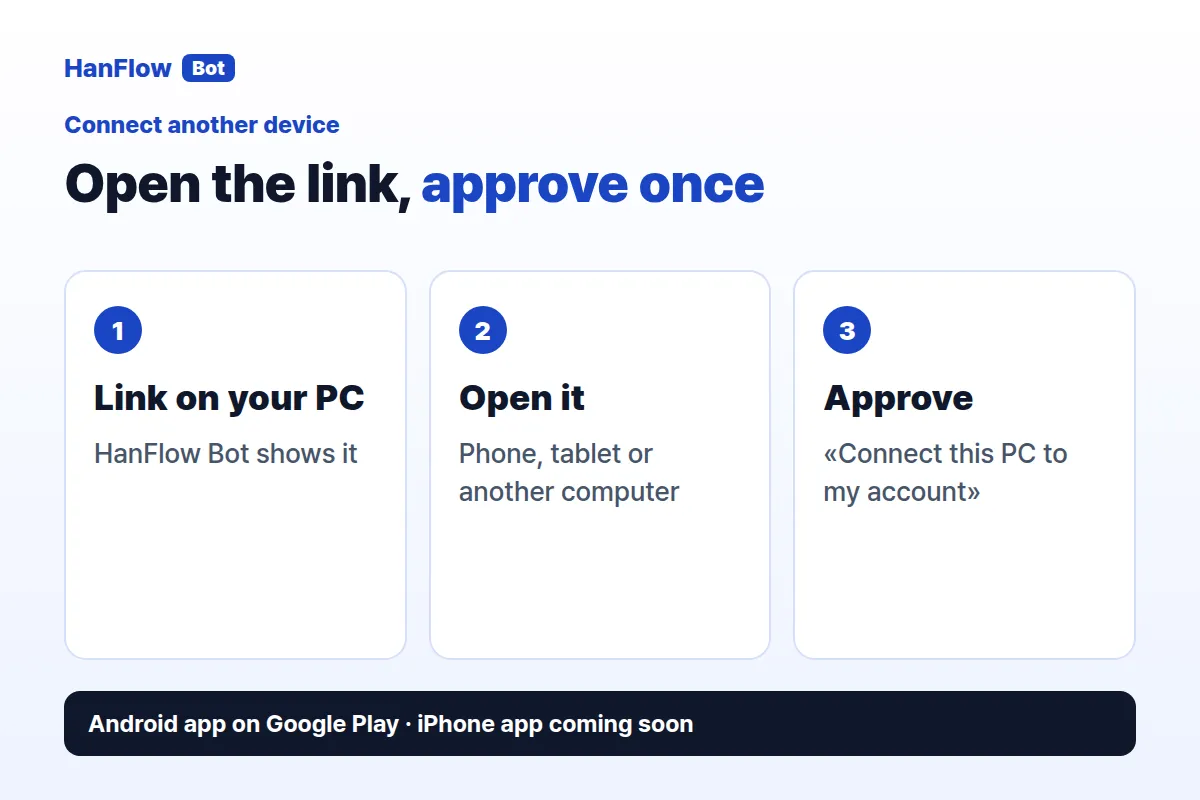
- On your PC, HanFlow Bot shows a link.
- Open that link in a browser on your phone, tablet or another computer.
- A screen asks whether you want to connect this PC to your account. Approve it.
- You are in. The bot's conversation appears in the browser, and you can send requests just as you would at your desk.
If you want someone else — a teammate, an assistant — to use the bot on your PC, you invite them. The same browser entry is how they reach the bot on your PC.
An Android app called HanFlow Bot is available on Google Play. An iPhone app is available on the App Store. Both work the same way: they connect to the bot running on your PC.
Approve from another device
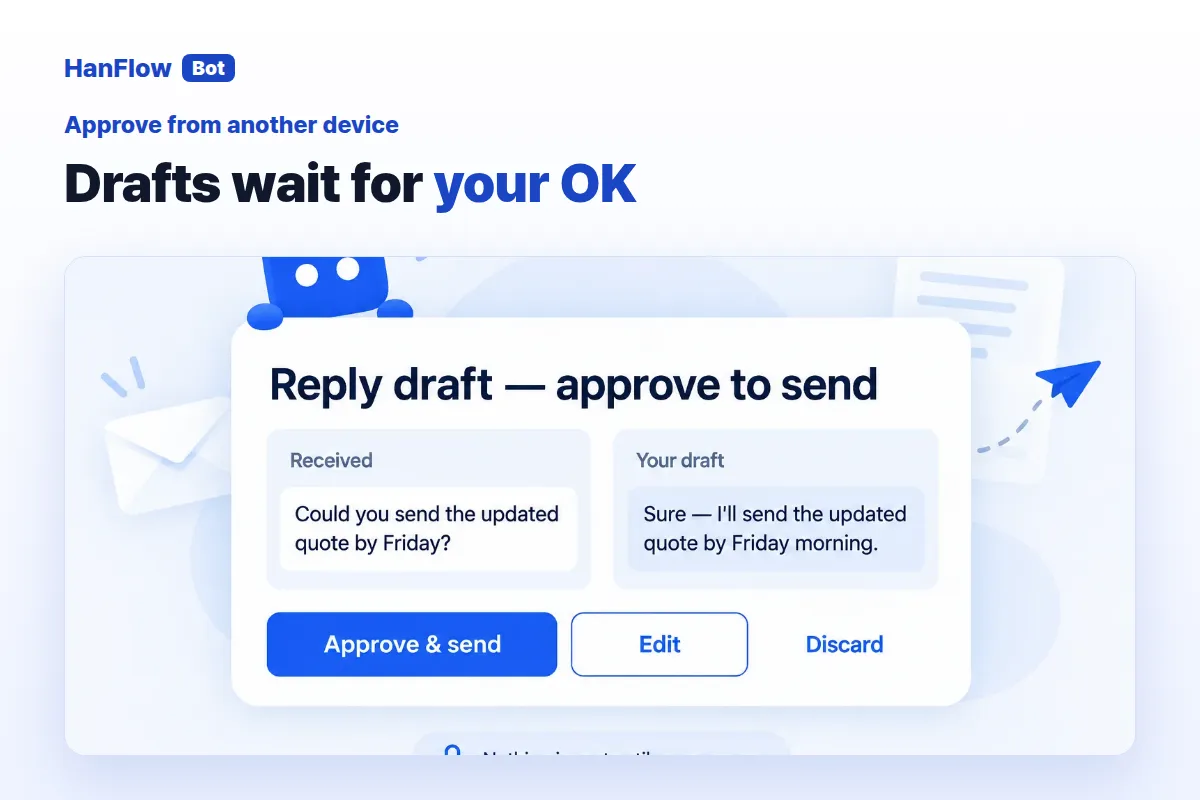
When the bot drafts a mail reply or prepares a schedule request, it shows an approval card. You can press that card in the browser on the device you are using — your phone, a tablet or another computer.
Messages the bot writes — email replies, messenger drafts, any text meant for another person — always follow the same path: the bot writes a draft, you see the received message and the draft side by side, and you approve before anything is sent. Edit the draft, and the card comes back with your changes for one more look. The bot never sends on its own, and there is no setting to skip approval.
Schedule requests show an approval card the same way.
Say it instead of typing
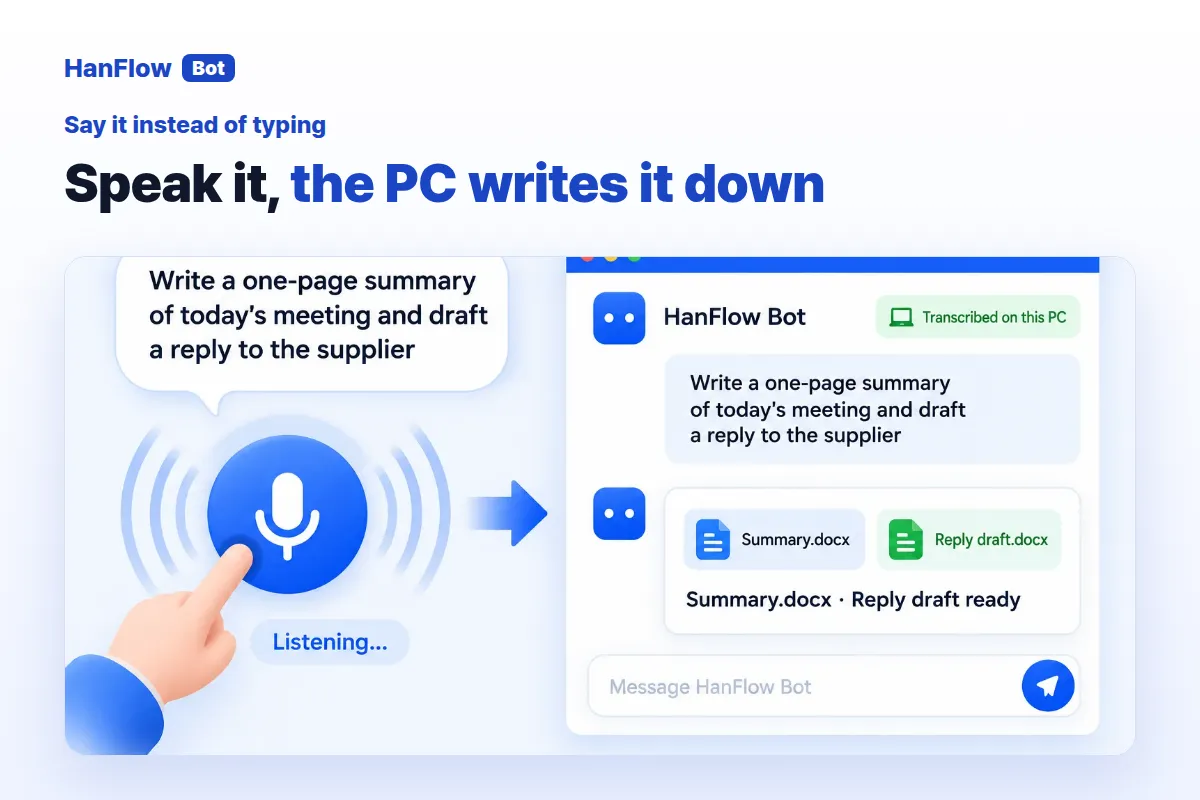
HanFlow Bot includes a speech-recognition engine bundled in the installer. Speak your request and it is transcribed into text on your PC.
This is useful when you are at your desk and your hands are busy, or when typing a long instruction feels slower than just saying it.
What has to be true
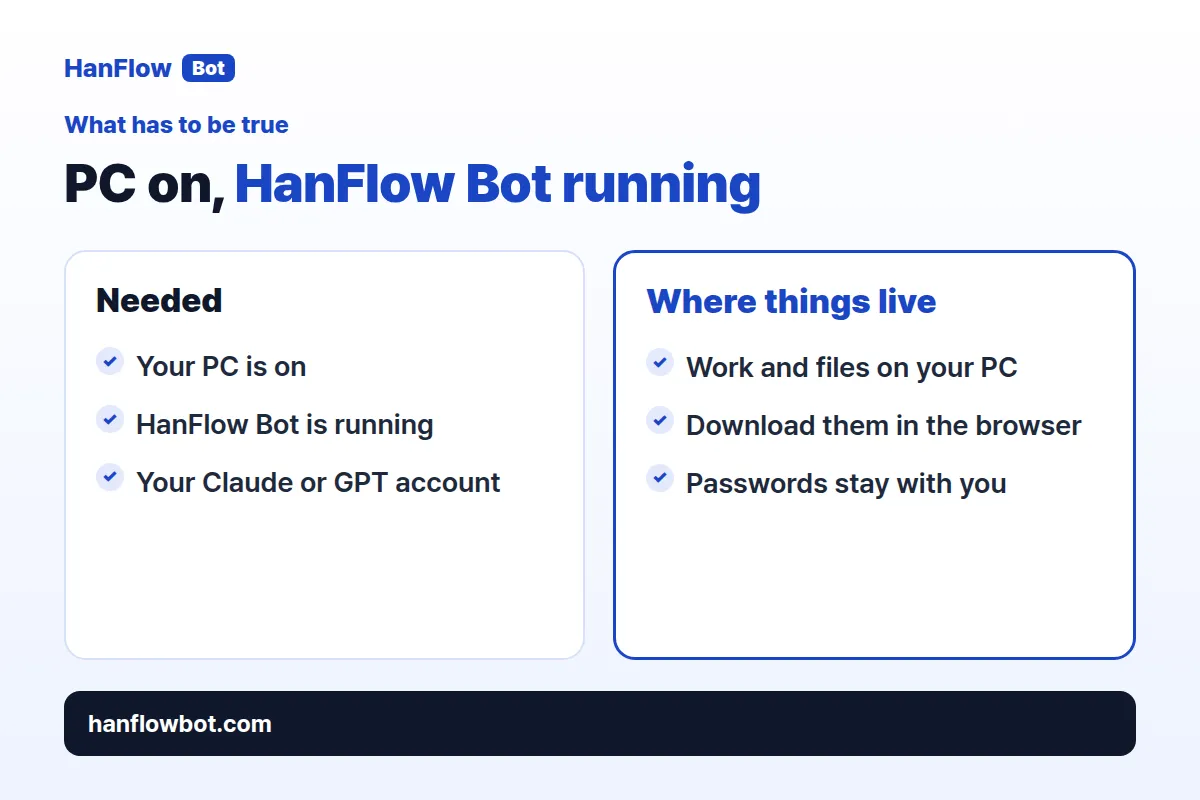
The browser connection and the phone app depend on one thing: your PC is on and HanFlow Bot is running. If your PC is off or the app is closed, the other device has nothing to connect to.
A few more honest points:
- AI features need your own AI subscription. Connect your Claude (Claude Code) or GPT (Codex) account. HanFlow Bot's price does not include the AI provider's fee.
- AI image generation requires a separate image API key.
- Files are saved on your PC. You can download them through the browser.
- Passwords and security steps are yours. The bot never types passwords. If a login expires while the bot is working, it stops and asks you to sign in again.
Frequently asked questions
Can I use the browser connection on an iPhone?
Yes. Open the link in Safari or any browser on your iPhone. No app install is needed — the browser session connects to the bot on your PC. A dedicated iPhone app is also available on the App Store.
Can someone else use my bot?
Yes — people you invite reach the bot on your PC through the same browser entry. What the bot creates is saved on your PC.
What happens if my PC goes to sleep?
The browser and the phone app work only while your PC is on and HanFlow Bot is running. Wake or start the PC and open HanFlow Bot, then connect again.