
AI Agent for Web Forms — You Log In, It Fills, You Approve
HanFlow Bot fills portal forms, attaches receipts, and checks amounts for you. It stops before every submission so you approve first.
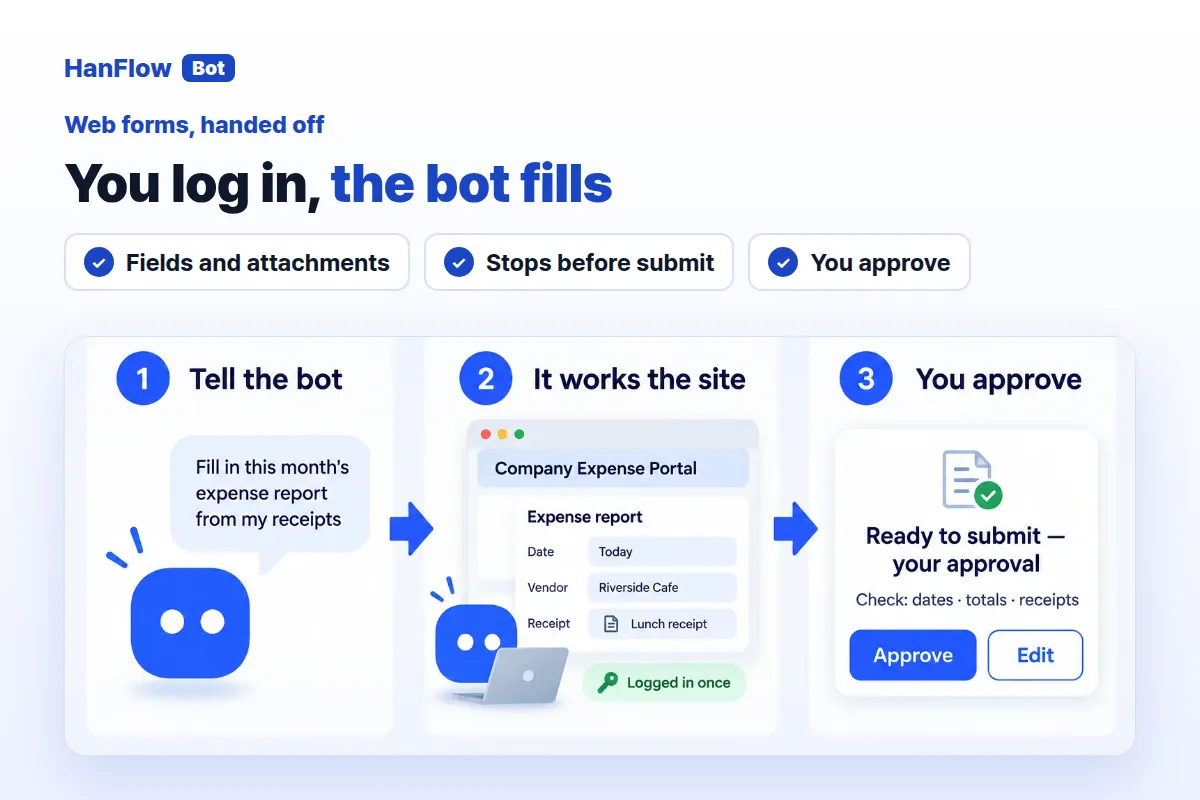
Government grant portals and expense systems ask for a lot of fields. Pull up a tax invoice, pick a budget category, attach receipts, verify the vendor and bank account — it adds up. HanFlow Bot takes over the filling and stops right before the submit button. Nothing is submitted until you approve.
What the bot does, what you do
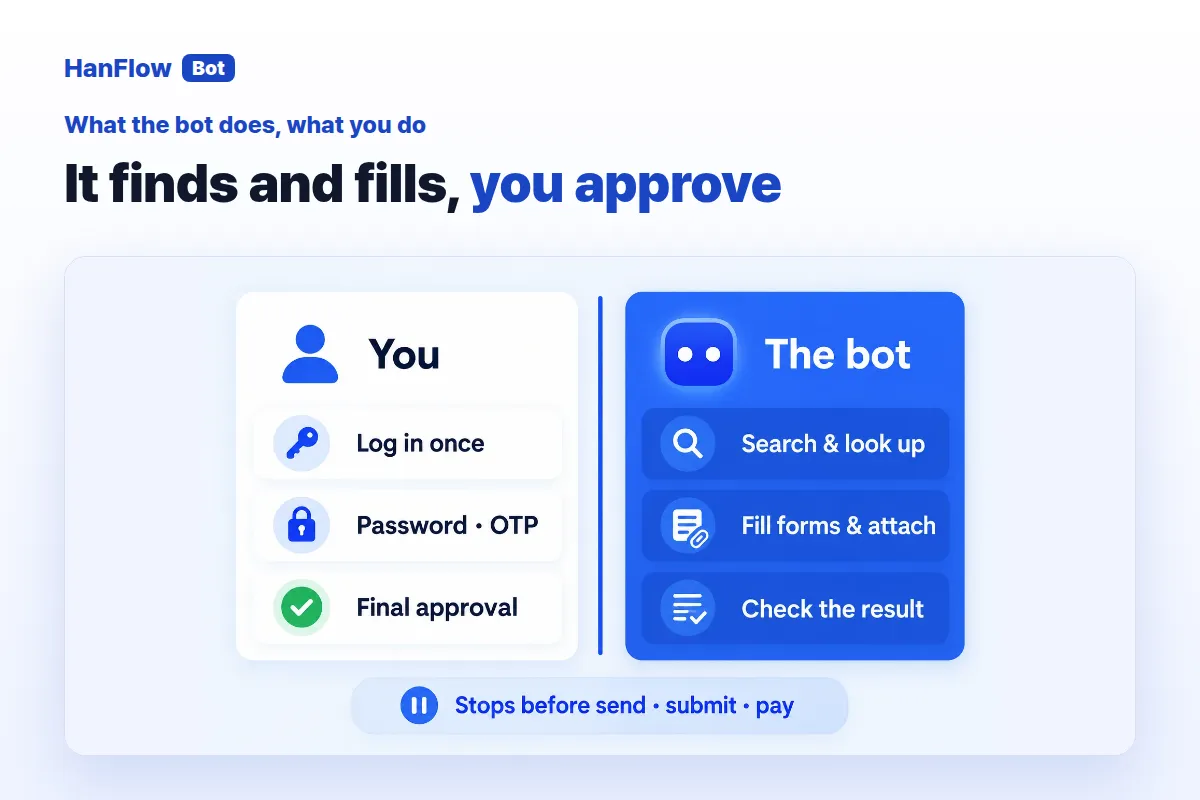
The line between bot and person is clear.
The bot finds fields on the portal page, reads your files or receipts, and fills in the values. It attaches supporting documents. It compares what it entered against the originals — receipts, earlier submissions — and flags mismatches in amounts or dates. Then it shows you what it filled, on your PC screen or on your phone.
You log in to the portal once. When a certificate or phone verification prompt appears, you handle it yourself. You review what the bot filled and approve it. Only then does the submission go through. The bot never completes an irreversible submission or a payment on its own — it stops and waits for you.
How it works
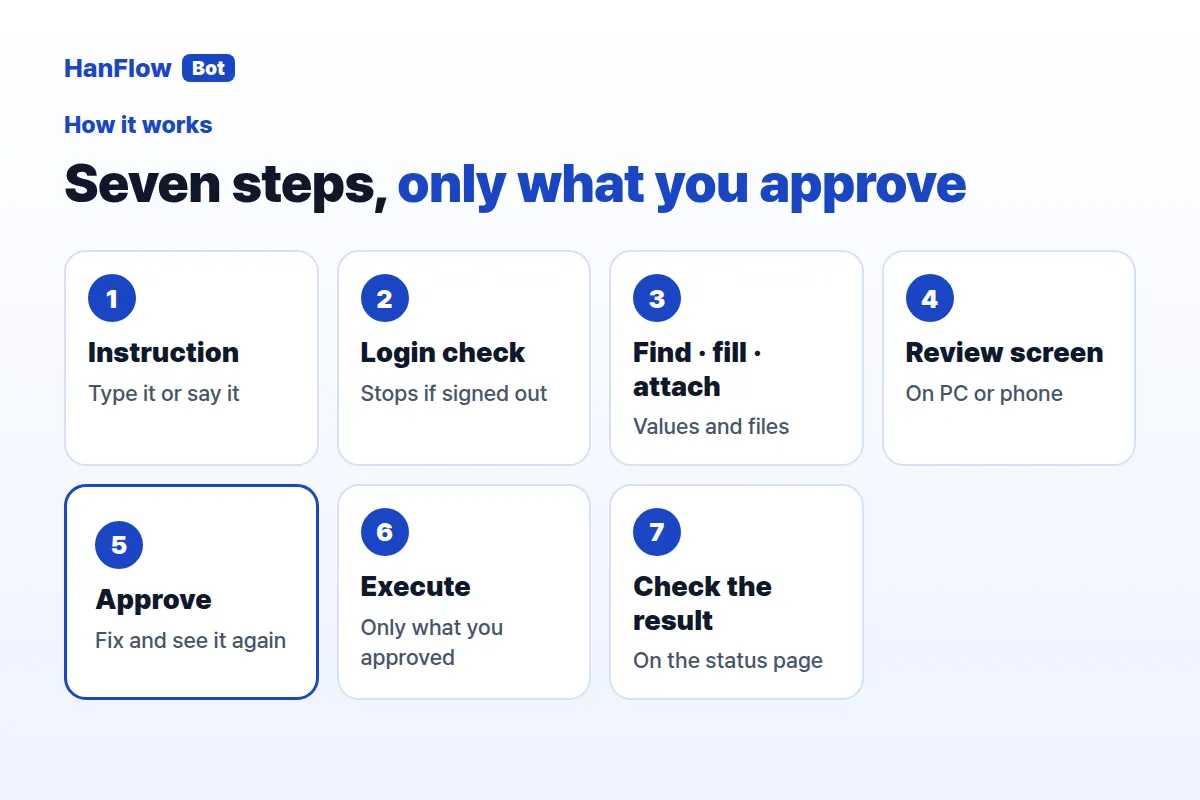
When you give the bot a portal task, it moves through these steps.
- Instruction. Tell the bot what to do — type it or speak it. HanFlow Bot includes a voice-input engine bundled in the installer, and speech recognition runs on your PC.
- Login check. If the session has expired, the bot stops and tells you. You log in and enter any passwords yourself — the bot never types in a password field.
- Find, fill, attach. The bot navigates the portal, finds the right fields, enters values, and attaches files.
- Review screen. You see what the bot filled — on the PC window or from your phone through a browser.
- Approval. If something needs fixing, say so. The bot corrects it and shows you the review screen again. You approve.
- Execution. The bot carries out only what you approved. Payment execution stays with you.
- Result check. The bot opens the status page, confirms the result, and reports back.
Portal work it fits
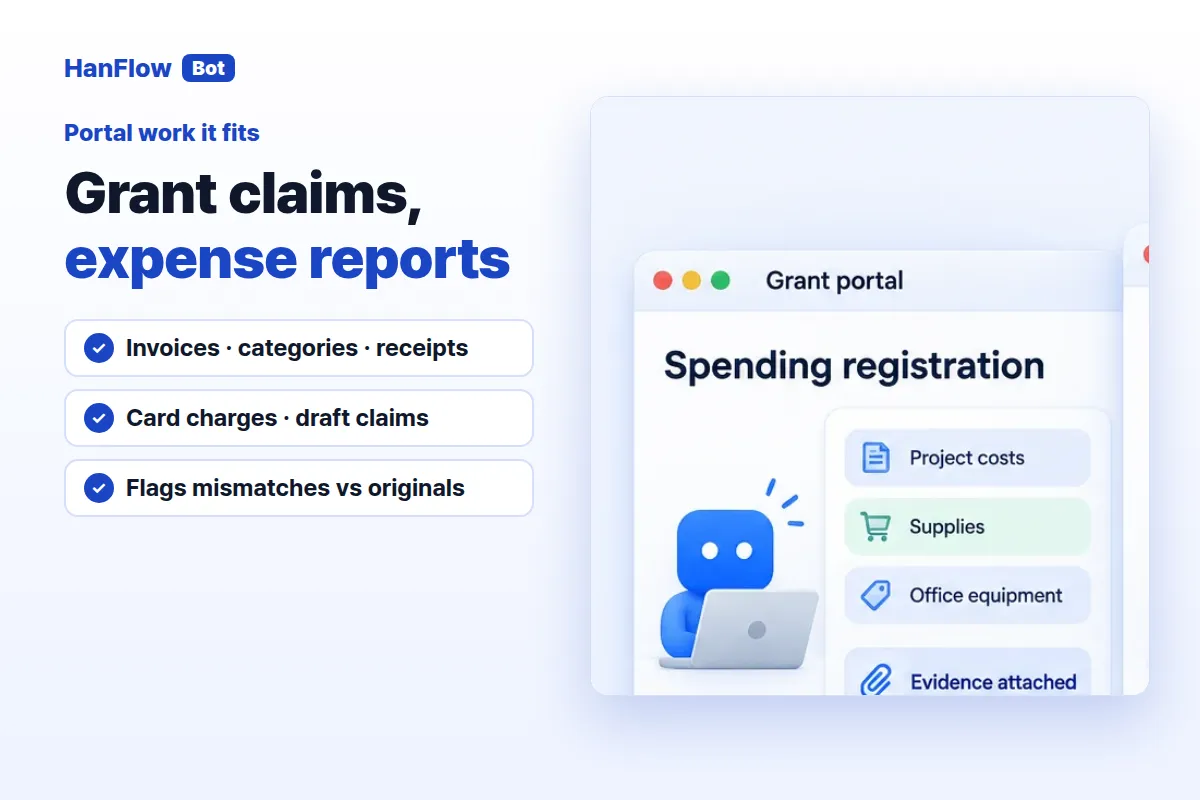
Grant and government portals. The bot pulls up tax invoices, picks budget categories, and attaches receipts. It verifies vendor details and bank accounts, then stops just before registration and waits for your approval. If an attachment needs replacing, it swaps the file. It can also look up the processing result afterward.
Expense and research-fund reports. The bot queries outstanding card charges, drafts a claim, and saves it as a temporary record. When registering a vendor or bank account, it runs an account-holder lookup. If a claim is returned, the bot checks the rejection reason and tells you what went wrong.
In both cases the bot compares what it entered against the originals — receipts, prior submissions — and marks where an amount or a date does not match.
What still needs a person
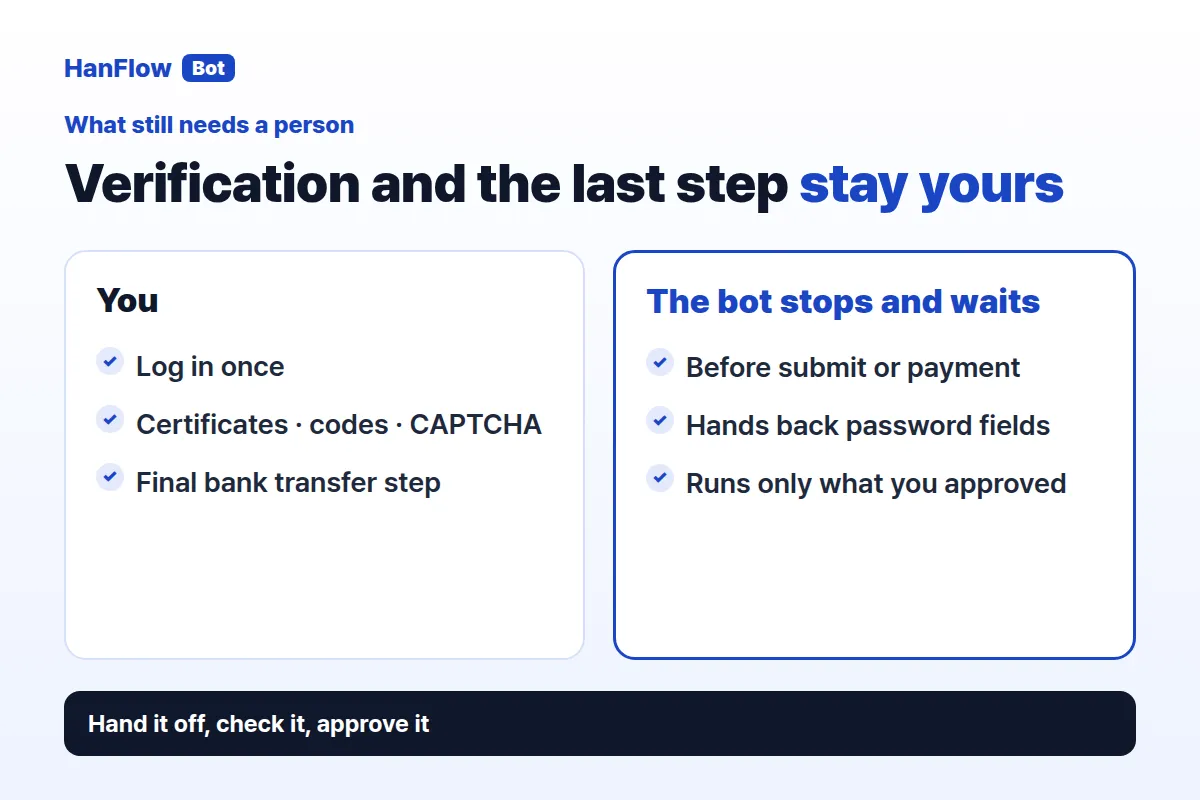
Some steps stay with you.
- Certificate or phone verification, CAPTCHA, and two-factor codes — you enter these yourself.
- Bank transfers behind a security keyboard — the bot fills the transfer form and queues it, but you complete the final execution. The bot does not type in password fields.
- Websites that launch a separate desktop program (some electronic-approval systems) — the bot may not be able to operate inside those.
- Messaging platforms whose terms restrict automation — the bot sends only one approved message at a time, never in bulk.
- Every submission and payment — the bot stops just before and waits for your approval.
Get started
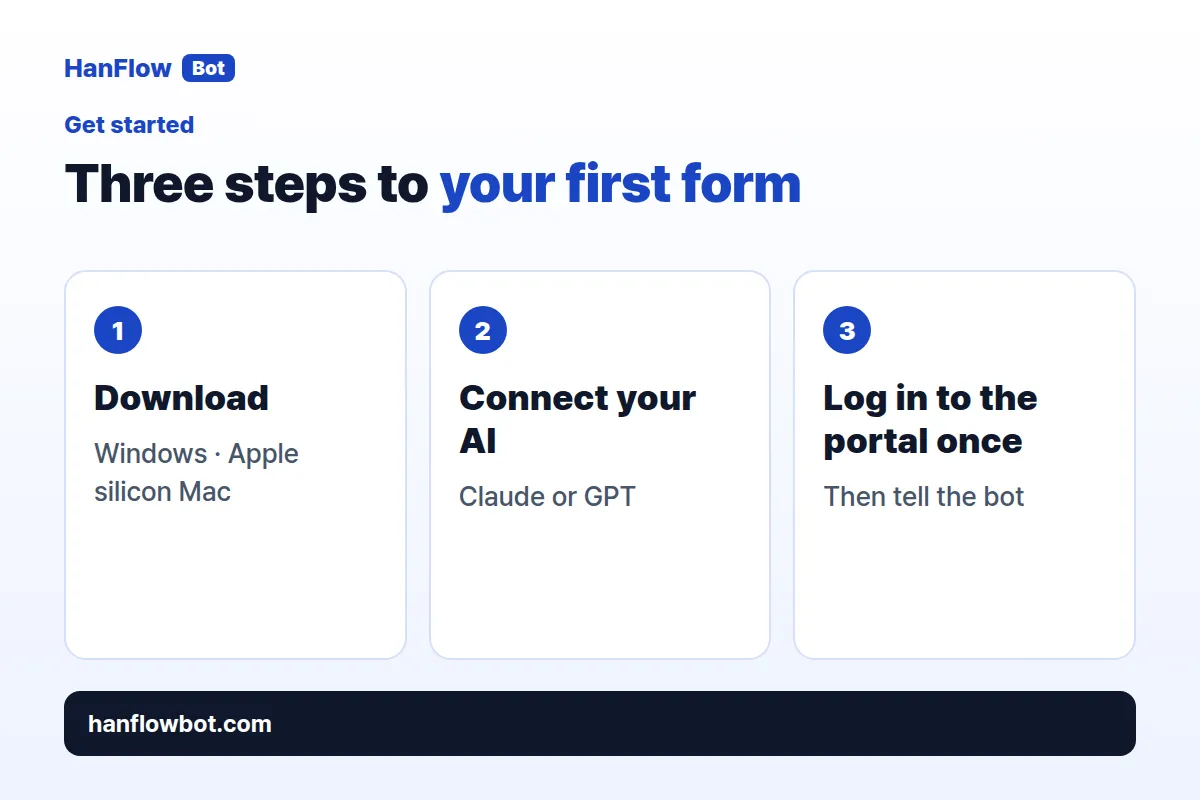
HanFlow Bot is a desktop app you install on a Windows PC. A separate build is available for Apple silicon Mac. To use AI features, connect your own Claude (Claude Code) or GPT (Codex) account — HanFlow Bot's fee does not include the AI provider's fee.
- Download the installer from the download page.
- Install it and connect your AI account.
- Open the portal in a browser, log in once, and tell the bot what to do.
See the pricing page for plan details.
Frequently asked questions
Do I need to configure the bot for each portal?
Log in to the portal once in the browser window the bot uses, then tell the bot what to do. The bot controls that open browser window to navigate, read, and fill fields. It never fills password fields — it hands those back to you.
Does the bot need its own AI account?
The bot uses your AI account. Connect either a Claude (Claude Code) or a GPT (Codex) account. AI image generation requires a separate image API key. HanFlow Bot's fee does not cover the AI provider's fee.
Can I review and approve from my phone?
While your PC is on and HanFlow Bot is running, you can reach the bot from a phone app or a browser on another device. The Android app is available on Google Play. The iPhone app is available on the App Store. You can see what the bot filled, approve it, or ask for changes — and the bot on your PC carries out the work.