
AI Agent for Expense Reports — Receipts In, Report Filled, You Approve
HanFlow Bot reads your receipts, fills your company's expense portal, checks amounts and dates, and waits for your approval before submitting.
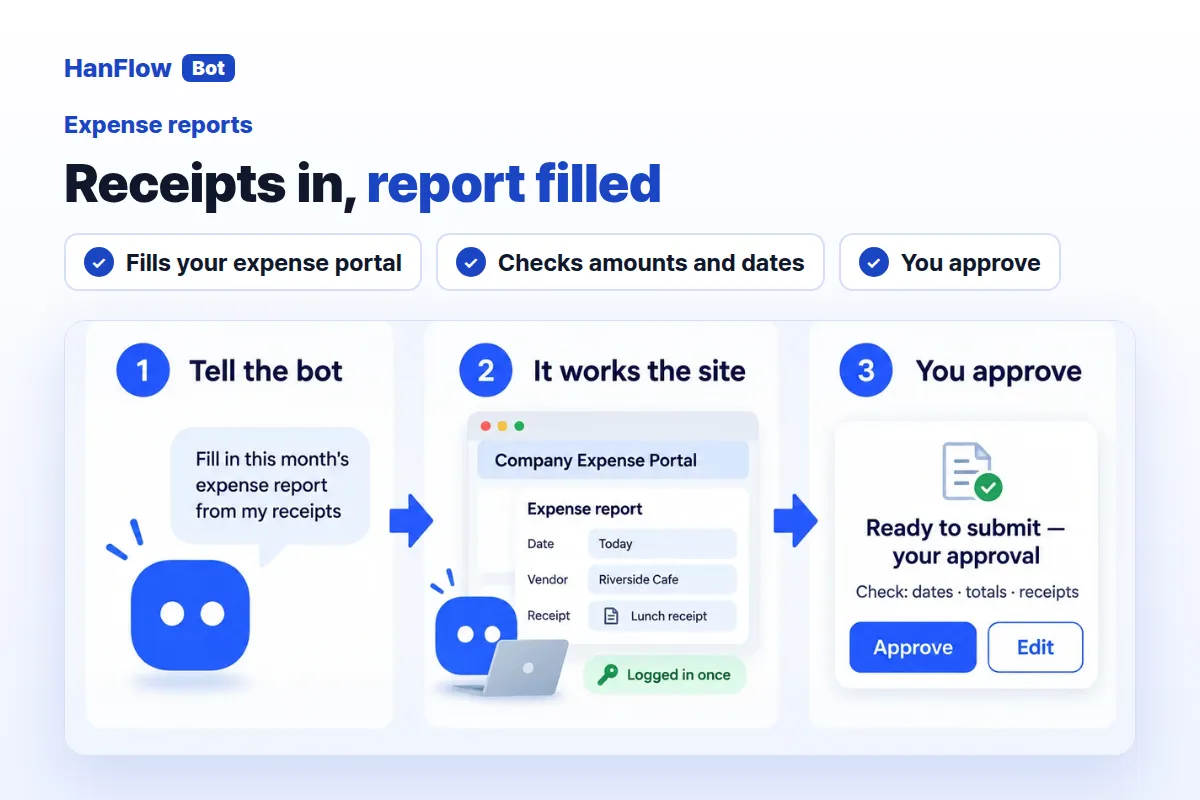
End of the month. A folder of receipt photos on your desktop, a stack of paper ones next to the keyboard. The company expense portal wants the same fields every time — date, vendor name, amount, category, attachment. You type the same numbers you can already see on the receipt. Then you do it again for the next one.
HanFlow Bot takes over the repetitive part. It reads your receipts, fills the portal fields, attaches the files, and checks what it entered against the originals. It does not submit. It stops and waits for you to look everything over first.
What the bot does vs. what you do
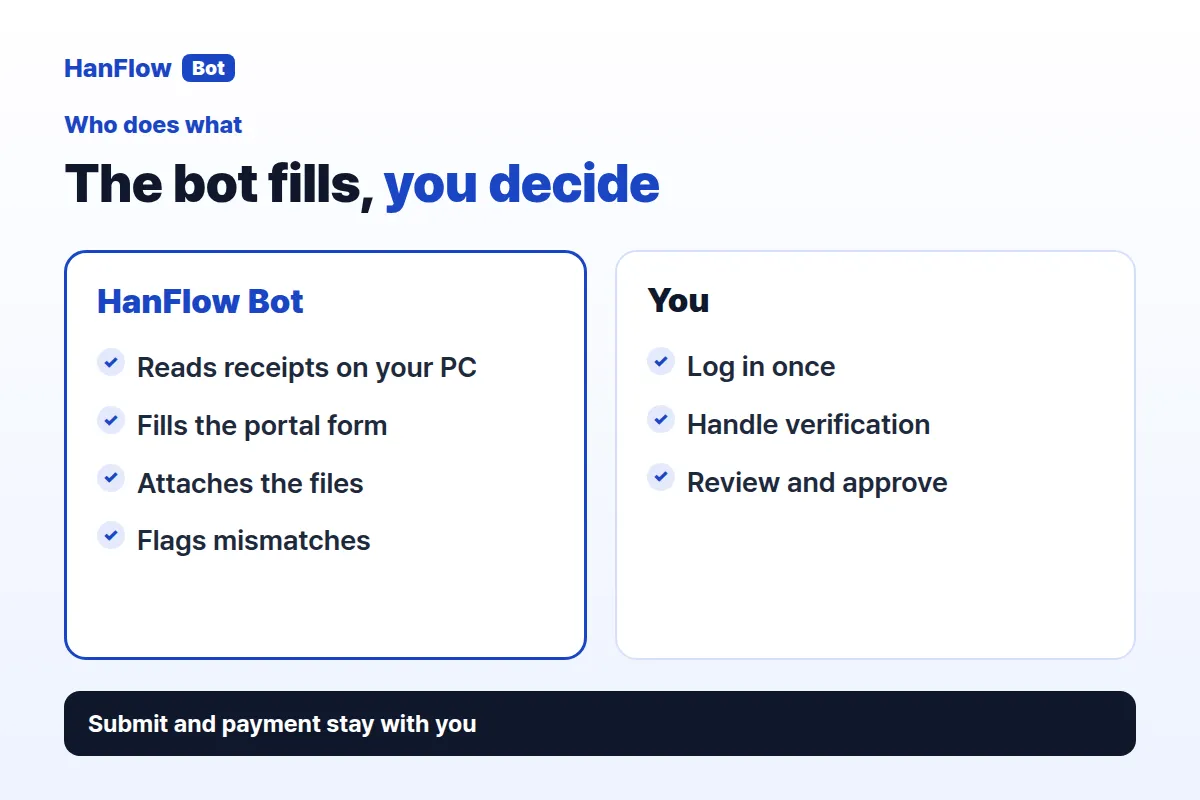
The split is straightforward.
The bot opens the expense portal in a browser window on your PC, navigates to the right form, reads receipt images or files, and fills in values — dates, amounts, vendor names, categories. It attaches supporting documents. Before showing you the result, it compares what it entered against the original receipts and flags anything that doesn't match: a wrong amount, a misread date, a missing attachment.
You log in to the portal once in that browser window. If a certificate prompt, phone verification, or two-factor code appears, you handle it. The bot never types in a password field — it hands those back to you. After the bot finishes filling, you review the report on your screen or from your phone. You approve, ask for corrections, or reject. Only after your approval does anything get submitted.
Irreversible actions — submitting the report, completing a payment — stay with you. The bot stops right before and waits.
Step by step: from a receipts folder to a filled report
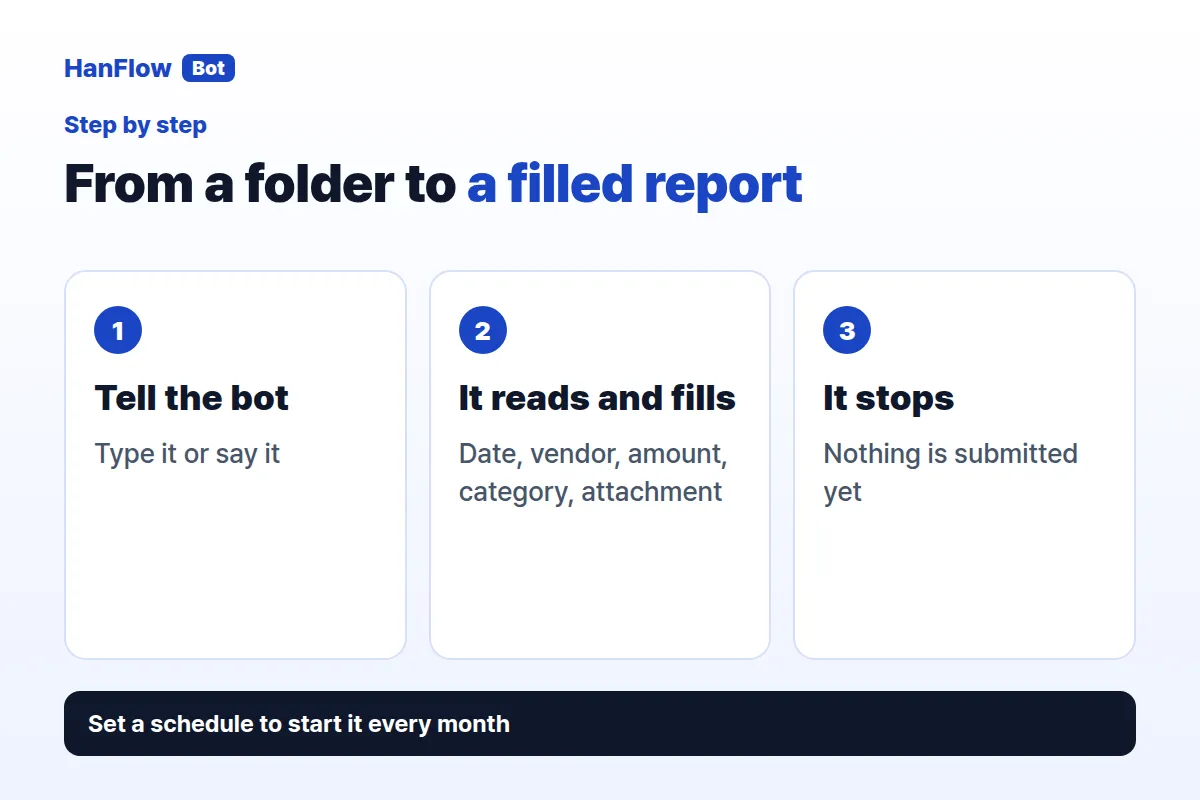
Here is what happens when you hand the bot an expense-report task.
- Tell the bot what to do. Type the instruction or speak it. HanFlow Bot ships with a voice-input engine that runs speech recognition on your PC.
- Login check. If your portal session has expired, the bot stops and tells you. You log in and enter your password. The bot resumes once the session is active.
- Read receipts. The bot opens receipt images or files from a folder on your PC. It pulls out the vendor name, date, amount, and any other details the portal requires.
- Fill the form. It navigates the portal, selects the right fields, enters the values, and attaches each receipt file.
- Flag mismatches. Before presenting the result, the bot compares every entry against the original receipt. If an amount is off or a date doesn't line up, it marks the discrepancy.
- Show you the result. You see the filled report on your PC screen or from your phone.
- Wait for approval. Nothing is submitted until you say so. If something needs fixing, tell the bot. It corrects the entry and shows you the updated version.
You can also set a schedule — for example, a monthly reminder to collect receipts and start the report — so the bot begins the work at a set time without you having to open it manually.
The check before submit
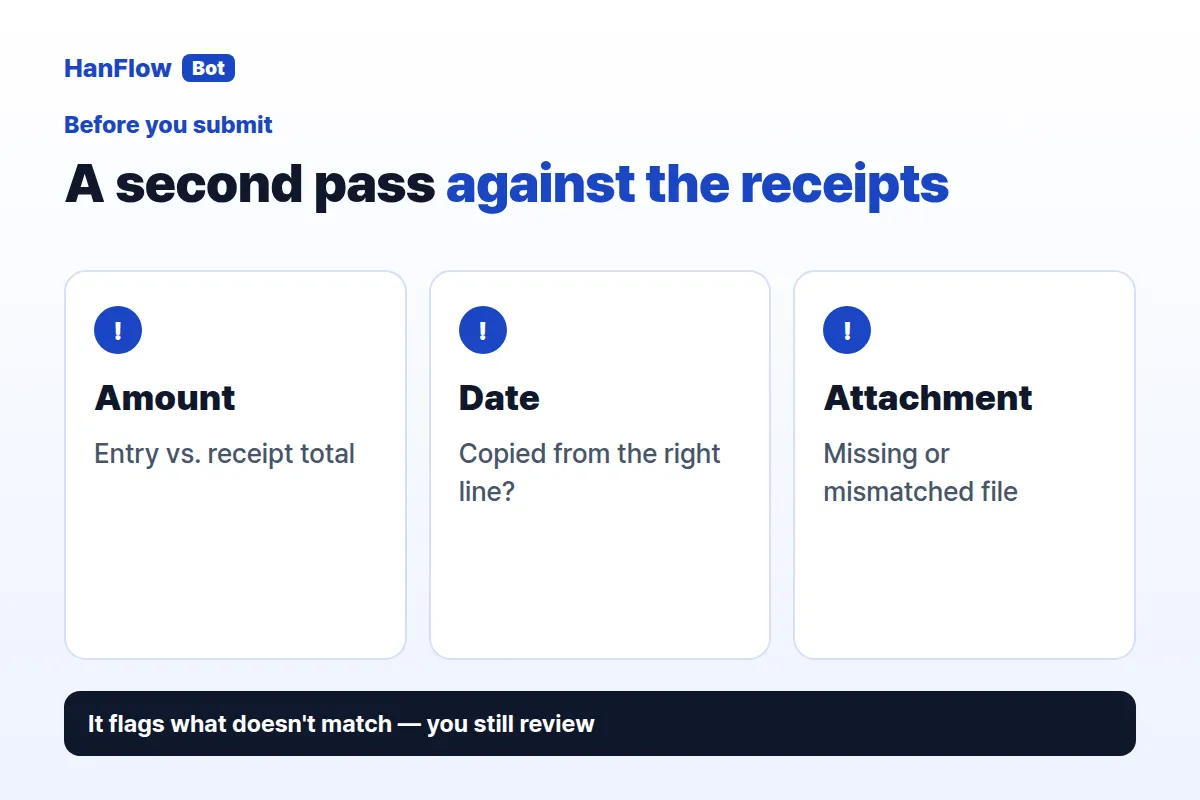
Expense portals don't catch every typo. A transposed digit in an amount, a date copied from the wrong line of a receipt, an attachment that belongs to a different transaction — these slip through easily when you're filling dozens of entries.
Before the bot hands the report back to you, it runs a comparison. It reads the values it entered in the portal and checks them against the source: the original receipt image, the file name, the amounts on prior submissions if they exist. Where something doesn't match, the bot marks it and tells you what it found.
This is not a guarantee that every field is correct. It is a second pass that catches the kind of mismatch a tired pair of eyes might miss. You still review the final result yourself.
Approve from your desk or phone

When the bot finishes filling the report, you can review it right on your PC. If you're away from your desk, you can also reach the bot from your phone. The Android app is available on Google Play, and any mobile browser works too — as long as your PC is on and HanFlow Bot is running. The iPhone app is available on the App Store.
From your phone you see exactly what the bot filled. You can approve, request changes, or reject. The bot on your PC carries out whatever you decide. If you ask it to fix an amount, it updates the field and shows you the revised entry before moving on.
Messages the bot drafts — say, an email to a colleague about a missing receipt — go through the same approval step. The bot writes a draft, you read it, and only after you approve does it send. Nothing goes out on its own, and there is no way to skip the review.
What you need
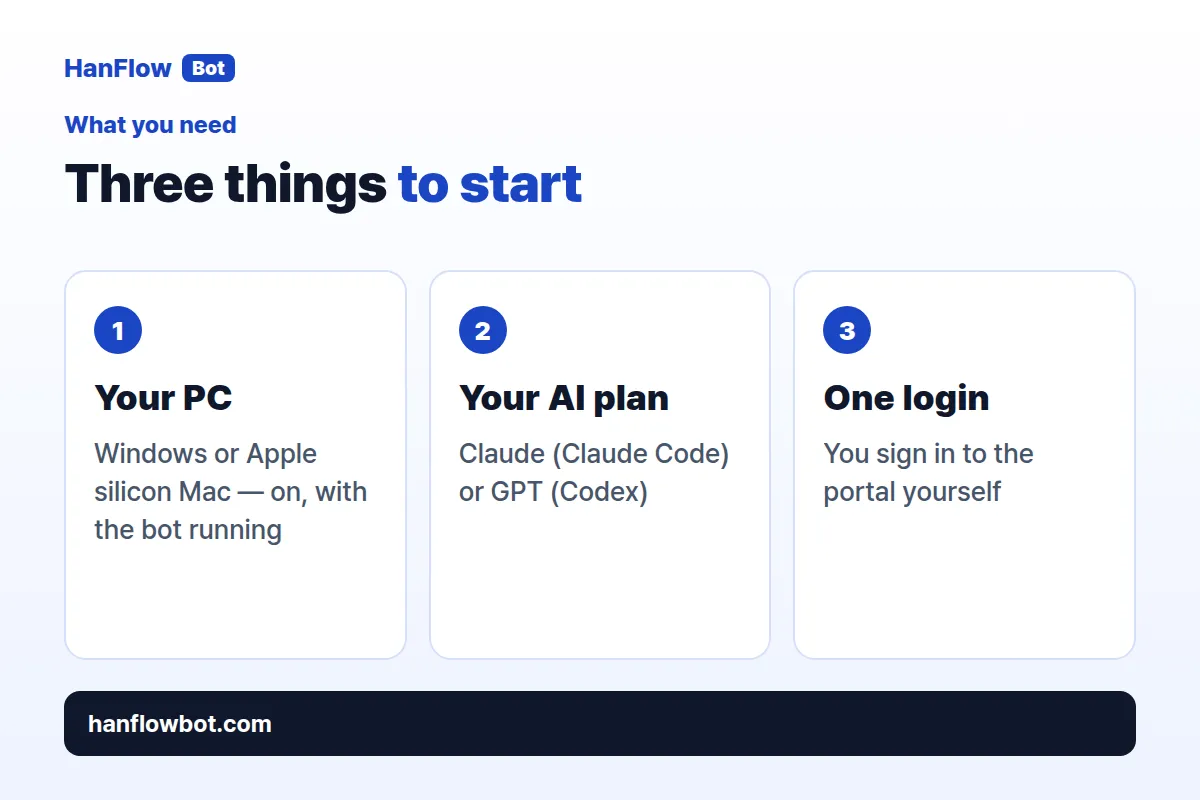
HanFlow Bot is a desktop app that runs on your PC. Here is what the setup requires.
A Windows PC. A build for Apple silicon Mac also exists. The bot controls a browser window on that machine, so the PC needs to be on and the app running whenever you want the bot to work — including when you send instructions from your phone.
Your own AI subscription. The bot's AI features use your Claude (Claude Code) or GPT (Codex) account. No API keys to manage. HanFlow Bot's subscription fee does not include the AI provider's fee.
One login. You open the expense portal in the browser window the bot uses and log in once. The bot takes it from there. When the session expires or a security prompt appears, the bot pauses and asks you to handle it.
HanFlow Bot runs on the Base subscription. Your first subscription includes one extra free month, applied after your paid period ends.
Frequently asked questions
Does the bot work with my company's expense portal?
The bot operates inside a browser window on your PC. If your expense portal runs in that browser, the bot can navigate it, read the fields, and fill them. It does not need a pre-built connector for each portal. You log in once, tell the bot what to do, and it works with the page it sees. Some portals that launch a separate desktop program may not be supported.
Can the bot handle receipts in different formats?
The bot reads receipt images and files from a folder on your PC. It reads vendor names, dates, and amounts from those files. Blurry photos are harder to read, so give those entries an extra look when you review.
What if a filled entry is wrong?
Before submission the bot compares its entries against the original receipts and marks mismatches. You review the result and can ask the bot to correct any field. The bot updates the entry and shows you the revised version. Submission happens only after you approve.
Learn more or download the installer at hanflowbot.com.