
Microsoft Copilot alternative: a PC agent that asks before it sends
Looking for a Microsoft Copilot alternative? HanFlow Bot is a Windows and Mac AI agent that works with Claude or GPT and asks before it sends.

If you want a Microsoft Copilot alternative that runs as its own desktop app on a Windows PC or Mac, works with either a Claude (Claude Code) or GPT (Codex) subscription, and always stops for your approval before sending, submitting, or paying, HanFlow Bot is one option. Below is what each one offers, so you can choose for yourself.
What Microsoft Copilot is good at
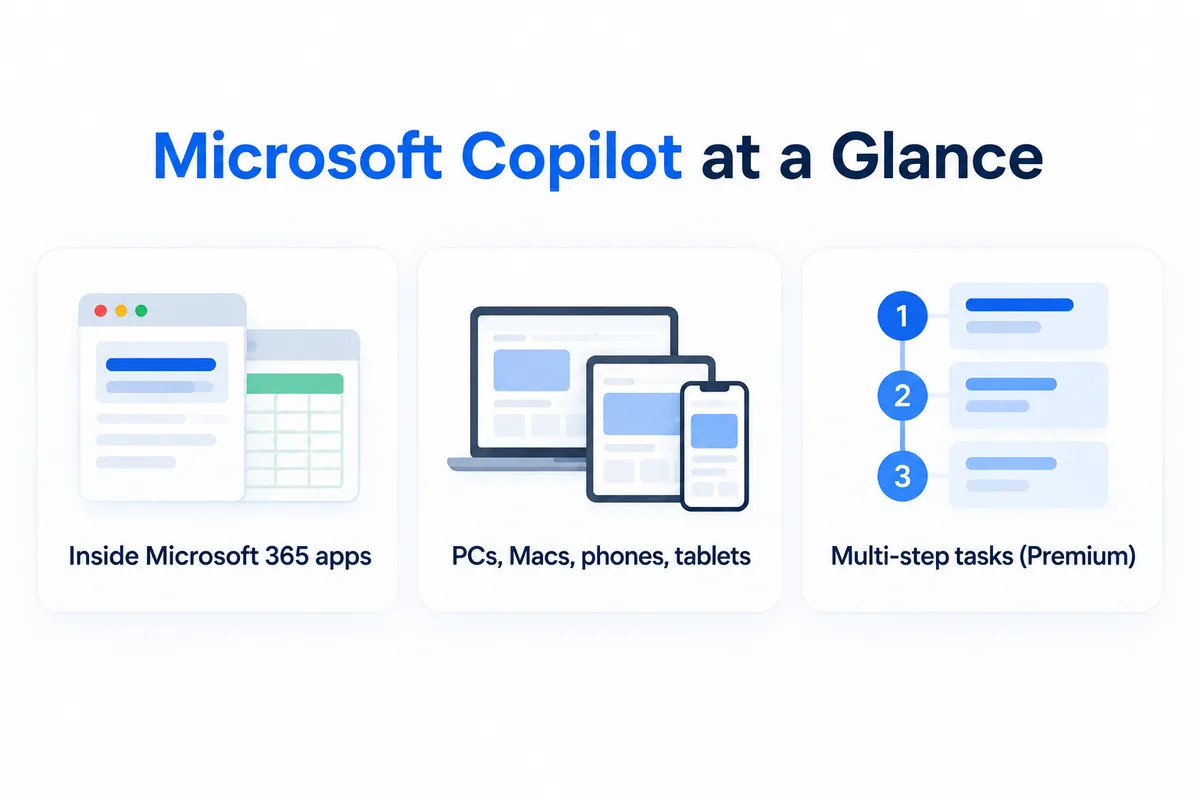
Microsoft describes Copilot as "the AI for work, helping you create, research, analyze, and get things done in the Microsoft 365 apps you use every day." It works inside Word, Excel, PowerPoint, and Outlook on desktop with a Microsoft 365 Personal plan or above. You can use it on PCs, Macs, phones, and tablets.
Premium and Pro plans add what Microsoft calls an AI-powered collaborator that helps plan and complete complex, multi-step tasks while keeping you in control, along with Researcher and Analyst features. Premium offers limited agentic AI usage; Pro offers the highest. A free tier of Copilot also exists, with paid plans offering higher usage. Subscriptions renew automatically unless canceled, and you can pay monthly or yearly.
If you already use Microsoft 365 and want AI built right into Word, Excel, and Outlook, Copilot is a strong starting point. (Microsoft Copilot plans page, checked October 2026.)
Where HanFlow Bot is different

-
Choose your AI subscription. HanFlow Bot works with a Claude (Claude Code) or GPT (Codex) subscription — you pick one. API keys are not supported. Your AI subscription is separate; it is not included in the HanFlow Bot price.
-
Messages to people always wait for you. Email, messenger, and other messages to people always go draft, then your approval, then send. The bot never sends on its own, and there is no switch to turn that off. The approval card shows the received message and the draft side by side, written in your usual tone.
-
Forms and payments stop before the final step. When the bot fills out a submission form or reaches a payment screen, it pauses right before the final step and waits for you. The bot does not complete a payment on its own.
-
Works in a browser window on your PC. The bot controls a browser window on your PC to fill forms, copy data, and download files on the sites you use. You log in once yourself, and the bot never types your passwords.
-
One bot per job, with its own memory. Each bot stores its own memory, chat history, and engine settings separately. When you close a conversation, the bot saves what it should remember long-term to a memory card. This is not model training.
-
Voice requests, processed on your PC. Speak your request and the speech recognition engine — bundled with the installer — turns it into text on your machine.
-
Files on your PC. Documents and files the bot creates are saved on your computer.
-
Reach it from other devices. Open a browser on your phone, tablet, or another PC to talk to the same bot, view files, and approve drafts — as long as your PC is on and HanFlow Bot is running.
-
Scheduled jobs. Set a time and the bot works on its own at that time.
Which one to choose

-
Choose Copilot if you already pay for Microsoft 365 and want AI woven into Word, Excel, PowerPoint, and Outlook with agentic features inside those apps.
-
Choose HanFlow Bot if you want to pick between Claude and GPT, keep one bot per job with its own memory, and have sending, submitting, and paying always wait for your approval.
-
Either way, start with one small task — a single email draft or a form fill — and see how the approval step feels before scaling up.
Getting started
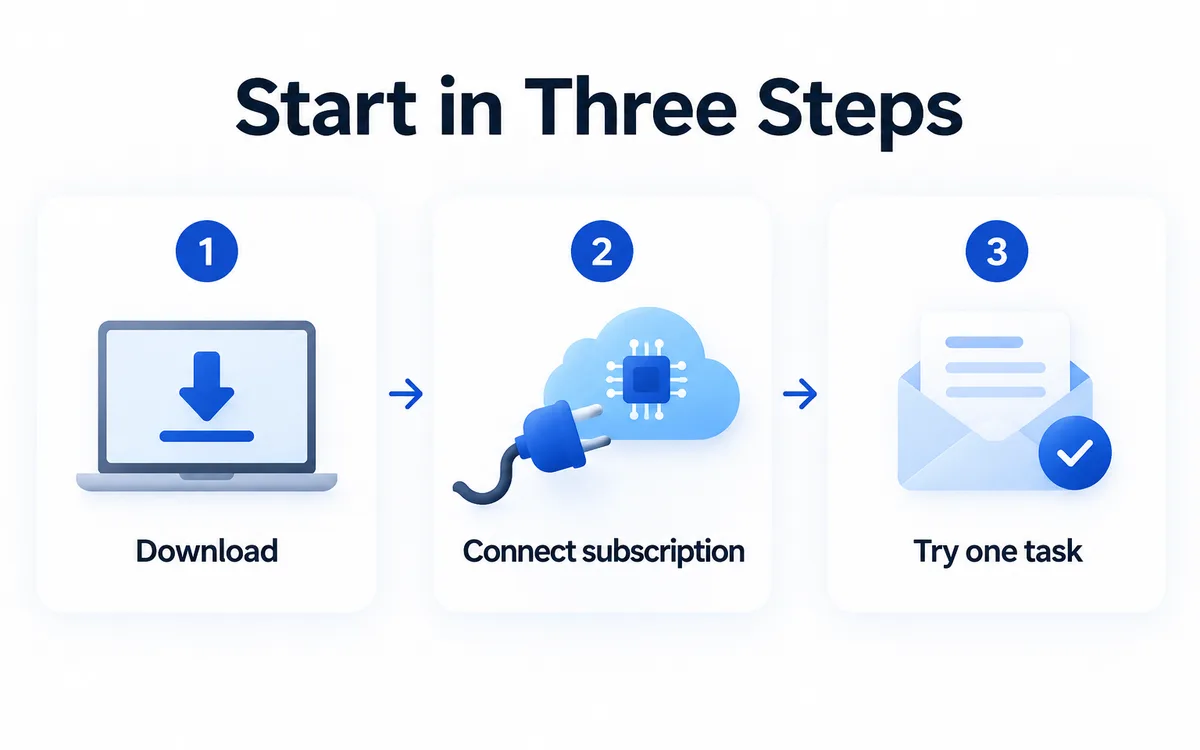
- Download HanFlow Bot from the download page for Windows or Apple Silicon Mac.
- Connect your Claude (Claude Code) or GPT (Codex) subscription inside the app.
- Try one small task — ask the bot to draft a reply to one email, then check the approval card before it sends.
See pricing for current plans.
Frequently asked questions
Does HanFlow Bot work inside Word or Outlook?
No. HanFlow Bot is a separate desktop app. It works in a browser window on your PC and creates documents saved on your computer. It does not plug into Microsoft Office apps the way Copilot does.
Can I use my existing Claude or GPT subscription with HanFlow Bot?
Yes. HanFlow Bot connects through Claude Code or GPT Codex — you pick one. API keys are not supported. Your AI subscription is separate; it is not included in the HanFlow Bot price.
Does it send emails on its own?
No. Every message to another person — email, messenger, or otherwise — goes through a draft, then your approval, then send. There is no way to skip that step.